Project Gallery Pro
v1.1.5
Project Gallery Pro
This manual covers the plugin from desk9design.com and CodeCanyon: products, groups and industries, adding projects with photos, before/after, customer quotes and videos, the block and the shortcode with every option, the three layouts, the lightbox, deep links, the settings, privacy, WPML and Polylang, licensing and updates. There is no free version; every section applies to every plan.
1. Overview
2. Requirements
3. Installation
4. Quick start
5. Products and groups
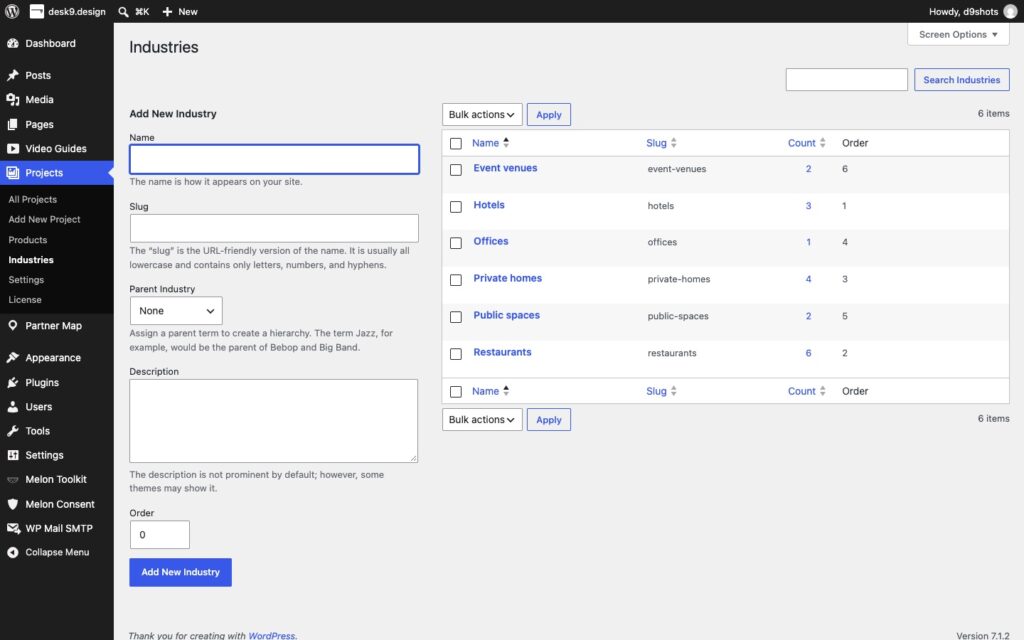
6. Industries
7. Adding projects
8. Before and after
9. Customer quotes
10. Project videos
11. The Project Gallery block
12. Grid, masonry and carousel
13. The lightbox
14. Product links and button
15. The shortcode
16. Deep links
17. Settings
18. Privacy, consent and cookie plugins
19. WPML and Polylang
20. Search engines
21. License and updates
22. Staging and moving sites
23. For developers
24. Troubleshooting and FAQ
25. Uninstall
1. Overview
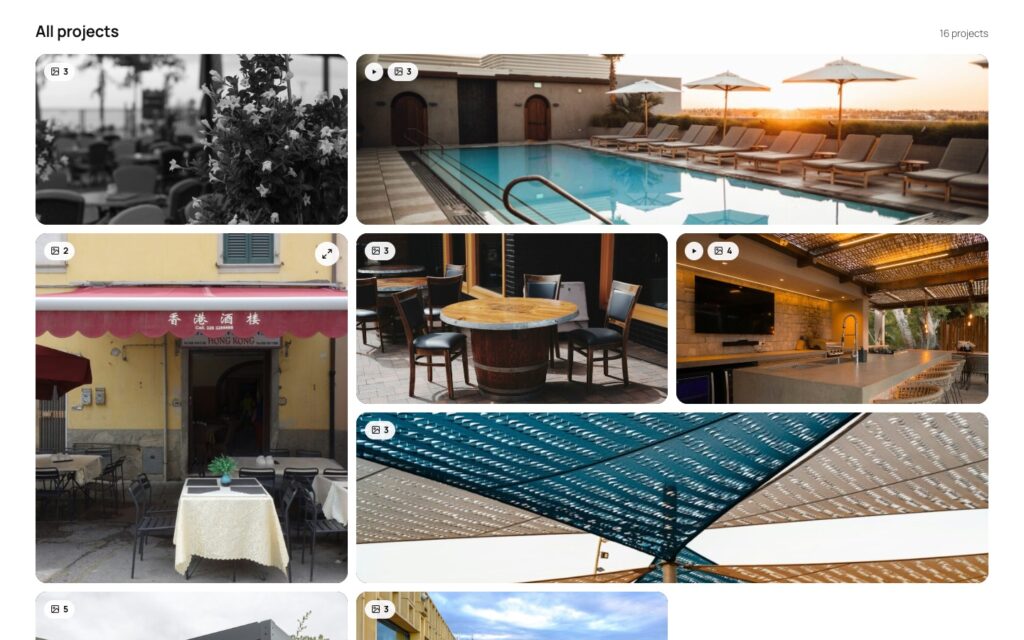
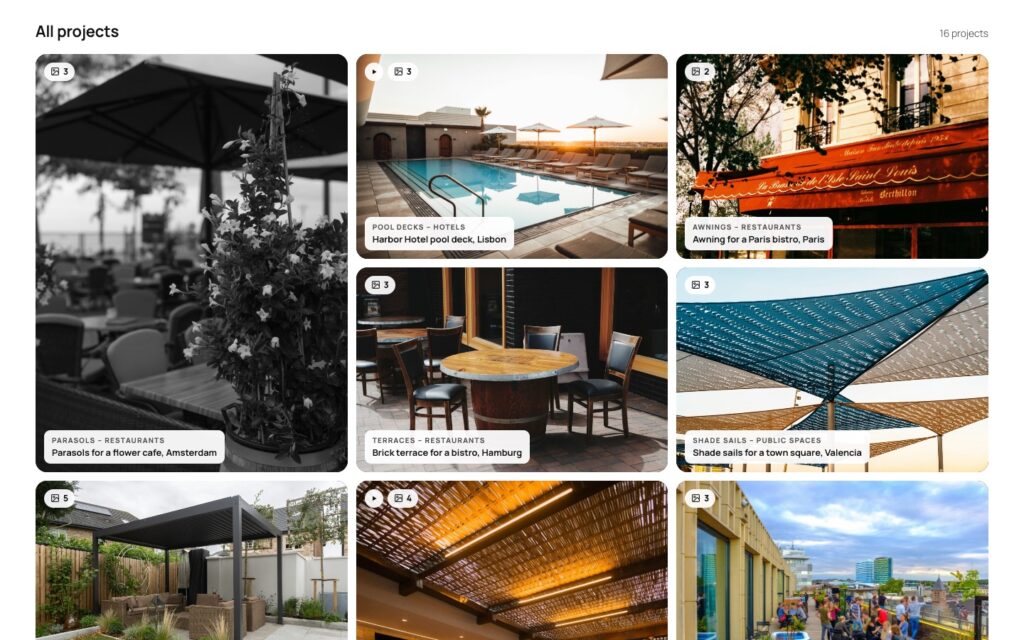
Project Gallery Pro shows what you have built, installed or delivered. Every project gets its own photos, and visitors filter by product and by industry to find the projects that match their own plans. A click opens a full-screen lightbox with all photos of the project, the place, the partner, a description, a before/after slider, what the customer said and the project video.
Products are shown as picture tiles, grouped the way you set them up; industries are simple buttons. Counts update with every click, and a deep link such as /projects/#terraces opens the gallery already filtered. Under the gallery, one card per product leads to its product page, next to a button such as “Request a quote”.
There is one edition of the plugin with every feature. What you buy on desk9design.com is a year of updates and support for the sites in your plan and the license key that delivers the updates inside WordPress. The plugin keeps working after the year; only updates and support stop until you renew.
| Project Gallery Pro | |
|---|---|
| Content | Projects with photos, products (with image and product page) and industries, all in your database |
| Layouts | Grid with wide and tall tiles, masonry, carousel; chosen per block |
| Lightbox | Arrows, keyboard, swipe, thumbnails; place, partner, description, before/after slider, customer quote with stars, project video |
| Videos | YouTube, Vimeo (also unlisted) and MP4 / WebM files from your media library |
| Block | Project Gallery |
| Shortcode | [d9pg_gallery] |
| Cookie plugins | Borlabs Cookie 3, Complianz, Melon Consent (our own, free on wordpress.org) |
| Languages | English and German included, WPML and Polylang supported |
| Search engines | automatic alt texts, project photos in the image sitemaps of Yoast SEO and Rank Math, schema.org Review for customer quotes |
| Admin | own menu Projects with All Projects, Add Project, Products, Industries, Settings and License |
2. Requirements
| WordPress | 6.5 or newer (tested up to 7.1) |
| PHP | 7.4 or newer |
| Theme | none; works with any block or classic theme, fonts and text color are inherited |
| Page builders | block editor for the block; classic editor and page builders through the shortcode |
| Cookie plugin | optional. Borlabs Cookie 3, Complianz or Melon Consent take over the consent decision for project videos; without one the built-in consent panel is used |
| External services | none on page view. YouTube or Vimeo only after a click on a project video from that service |
| Build tools | none. No build step, no external libraries, no tracking |
3. Installation
1
Download the ZIP desk9-project-gallery-pro-1.1.5-desk9design.zip from your account. The license key is in your order email and under Subscriptions.
2
In your WordPress admin go to Plugins > Add New > Upload Plugin, select the ZIP, click Install Now, then Activate.
3
A new top-level menu Projects appears with All Projects, Add Project, Products, Industries, Settings and License.
4
Open Projects > License, paste the key and click Activate license. From now on updates arrive through the normal Plugins screen. Every feature works before the key is in; the key brings the updates and support, nothing else is locked.
Note: if you tested the free version “Desk9 Project Gallery” on this site earlier, Pro takes over its projects, products, industries and settings on activation and deactivates the free plugin. You can delete the free version afterwards; your pages keep working.
4. Quick start
Fifteen minutes from an empty install to a gallery on a page. Products and industries first, because they are the filters.
1
Go to Projects > Products and add what you deliver: a name and a product image each. A product that other products name as their parent becomes a group, for example “Shade” with Parasols, Awnings and Shade sails.
2
Go to Projects > Industries and add who you deliver to: Hotels, Restaurants, Private homes.
3
Go to Projects > Add Project. Give the project a name, click Add photos and pick three or four photos from the media library; the first one is the cover. Fill in the place, tick the product and the industry in the sidebar, publish.
4
Open the page for your references and insert the Project Gallery block. Choose grid, masonry or carousel in the block sidebar.
5
Open Projects > Settings and set the accent color and the corners so filters and buttons match your site. The live preview shows the result before you save.
That is the whole setup. Everything below explains the options in detail.
5. Products and groups
A product is what a visitor filters by first: the terrace, the pergola, the kitchen, the service. Products live under Projects > Products with these fields:
| Field | What it does |
|---|---|
| Name | the label on the picture tile, on the tile card and in the lightbox |
| Group (parent product) | choose another product as parent and this product appears in that group. A product with sub-products is shown as a group heading with its tiles in one row |
| Product image | the picture on the filter tile. A JPEG photo fills the tile; a cut-out PNG, WebP or SVG, or an icon, is shown with space around it. Without an image the tile uses the cover photo of a matching project |
| Product page | a link for “View product” in the lightbox and for the product card below the gallery |
| Order | the position of the tile in its row; lower numbers first |
| Description | for your own reference; not shown in the gallery |
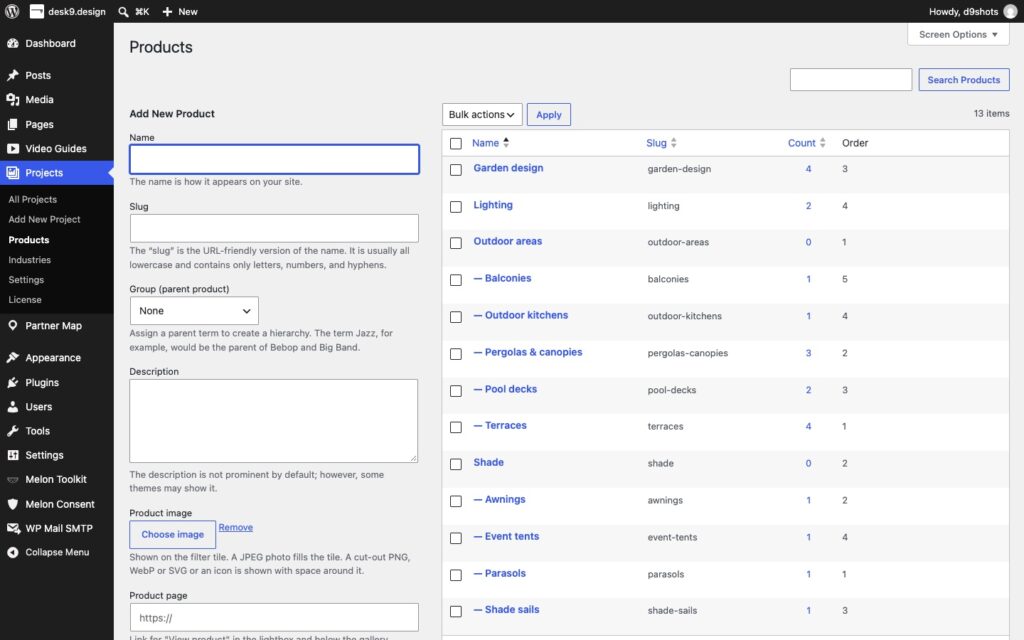
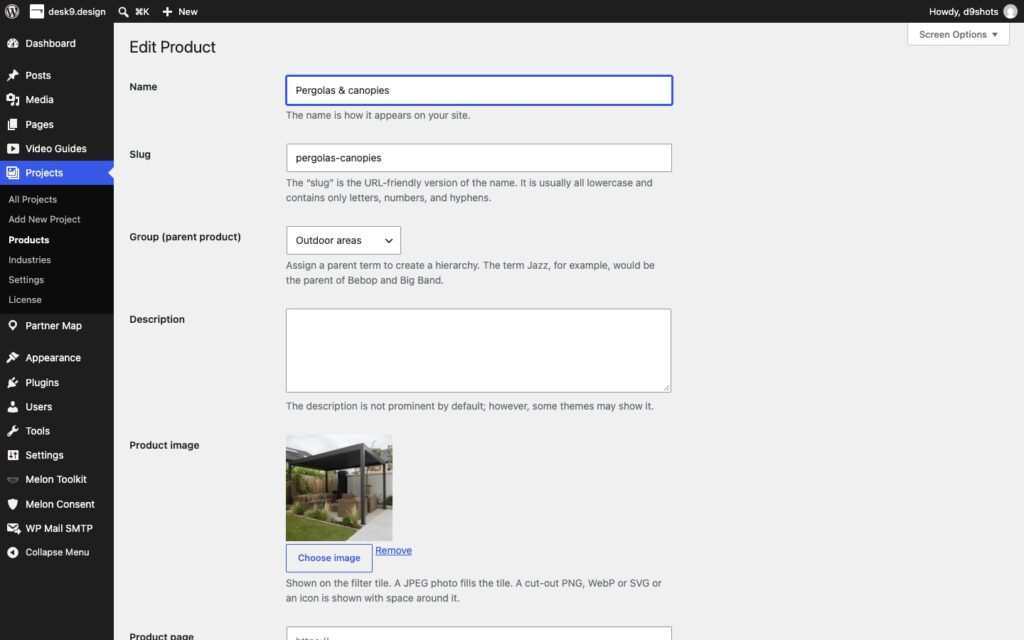
Groups are optional. When no product has a parent, all tiles stand side by side in one row without headings; with groups, each group gets its own row and heading. On phones the rows become swipeable.
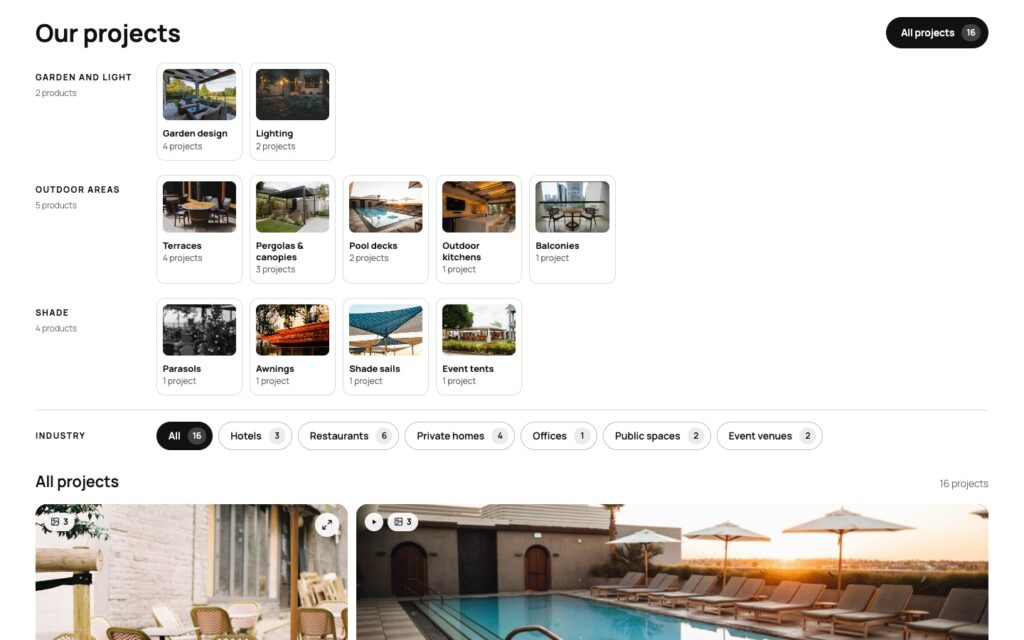

Note: a project can belong to several products. It then appears under every one of them, and each product tile counts it.
6. Industries
Industries are the second filter: who you delivered to. They live under Projects > Industries with a name and an order, and appear as buttons with counts next to or below the product tiles. An industry filter and a product filter combine: “Terraces” and “Hotels” shows only hotel terraces, and every count shows how many projects the next click would leave.
7. Adding projects
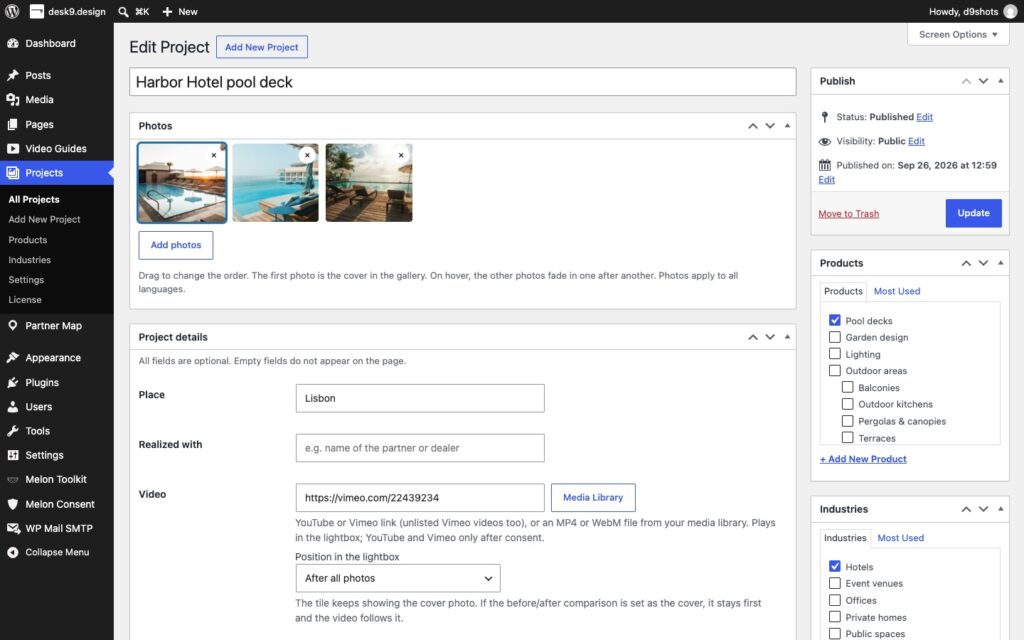
A project is a post under Projects > Add Project. The title is its name in the gallery. The boxes below it hold everything else:
| Field | What it does |
|---|---|
| Photos | click Add photos and pick any number of photos from the media library. Drag them to change the order. The first photo is the cover in the gallery; on hover the other photos fade in one after another. Photos apply to all languages |
| Place | for example “Hamburg”; shown on the tile card and in the lightbox |
| Realized with | the partner, dealer or architect; shown in the lightbox |
| Video | see Project videos |
| Short description | a few sentences about the job, shown in the lightbox |
| Show project details | shows name and place as a small card on the photo, and partner and description in the lightbox. Without the tick only product and industry are shown |
| Tile in the gallery | Normal, Wide (2 columns) or Tall (2 rows) in the grid layout. Mix a few wide and tall tiles for a lively grid |
| Products, Industries | in the sidebar; tick one or more of each |
| Order | under Page Attributes; lower numbers appear further up |
All fields except the photos are optional; empty fields do not appear on the page. Projects published within the number of days set under Projects > Settings > "New" badge carry a “New” badge on their tile.
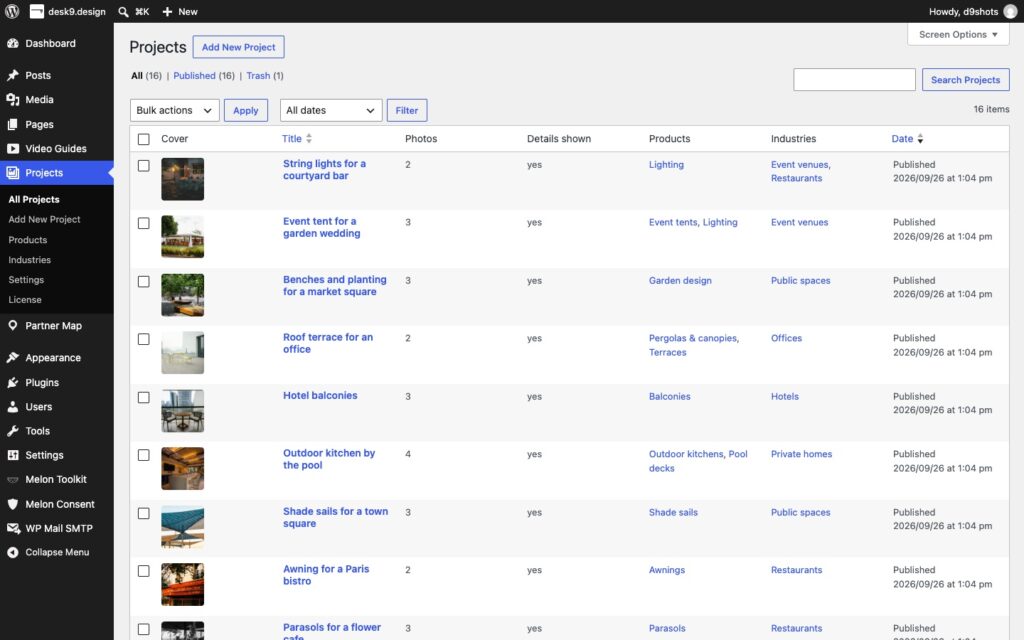
Warning: the gallery shows projects that have at least one photo or a before/after pair. A project with neither stays in the admin list but not on the page.
8. Before and after
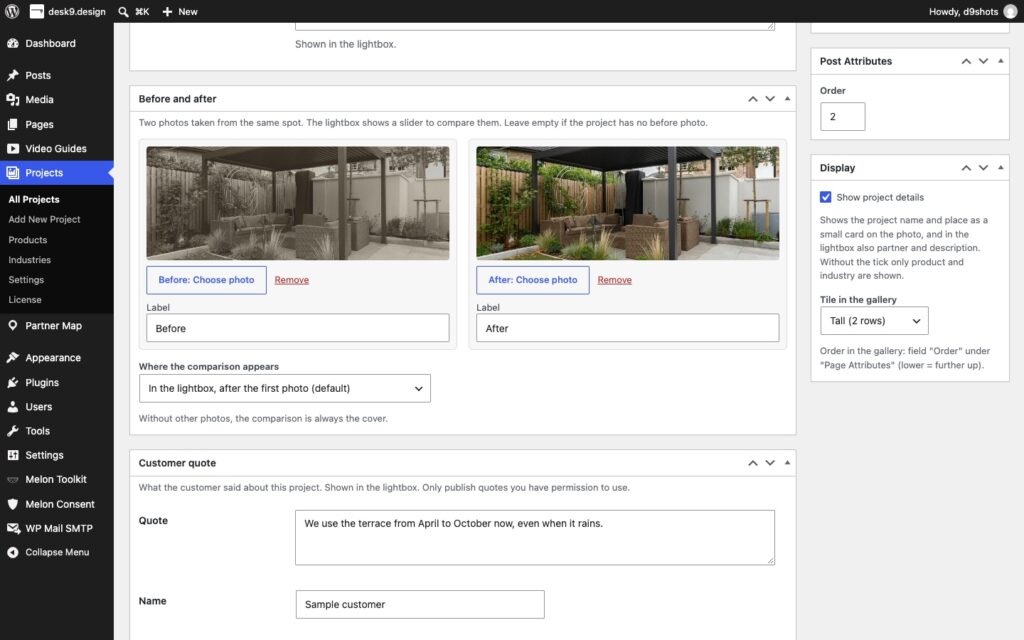
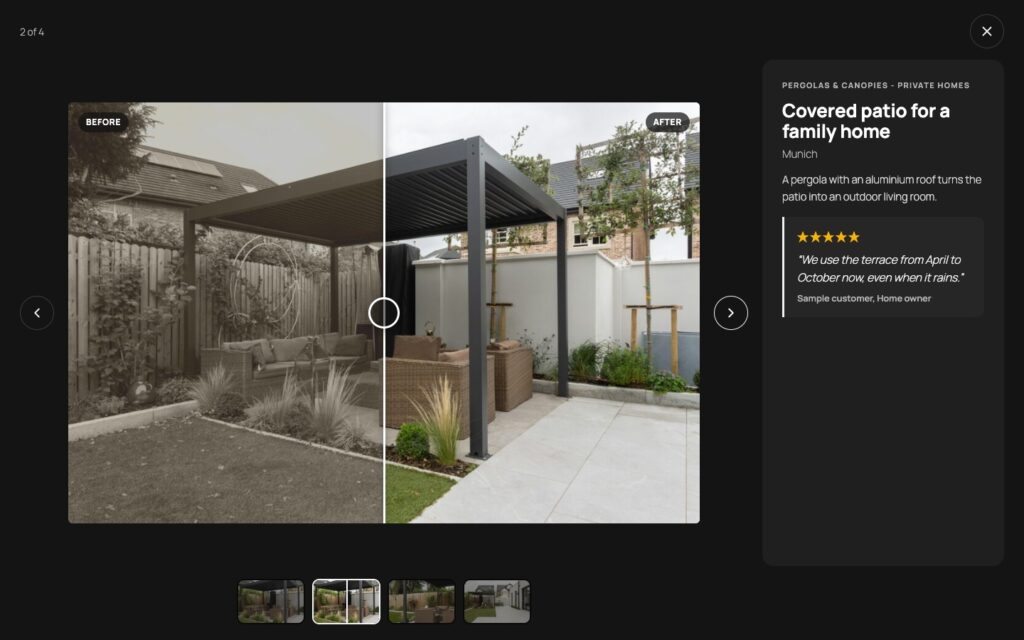
Two photos taken from the same spot become a comparison slider in the lightbox: the visitor drags the handle, with mouse, finger or the arrow keys. Add them in the Before and after box of the project.
| Field | What it does |
|---|---|
| Before, After | one photo each; Choose photo opens the media library |
| Label | the text on each side of the slider, for example “2019” and “2024”; empty = “Before” and “After”. Hide the labels on the tiles under Settings |
| Where the comparison appears | In the lightbox, after the first photo (default), In the lightbox, after all photos, or As the cover of the tile (split view) and first in the lightbox |
As cover, the tile shows both halves side by side and moving the pointer over it moves the dividing line. A project with only a before/after pair and no other photos always uses the comparison as its cover.
9. Customer quotes
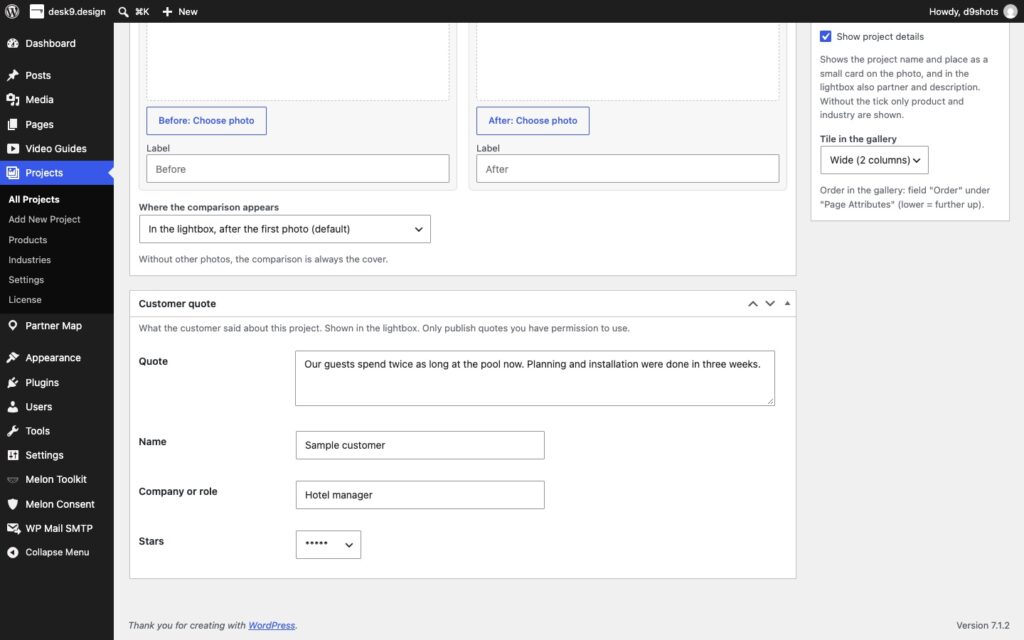
What the customer said about the project, shown in the lightbox next to the photos. The Customer quote box has four fields:
| Field | What it does |
|---|---|
| Quote | the text |
| Name | who said it |
| Company or role | for example “General manager, Harbor Hotel” |
| Stars | 1 to 5, or no stars |
Note: only publish quotes you have permission to use. Quotes are marked up as schema.org Review (see Search engines); search engines usually do not show stars for reviews a business publishes about itself.
10. Project videos
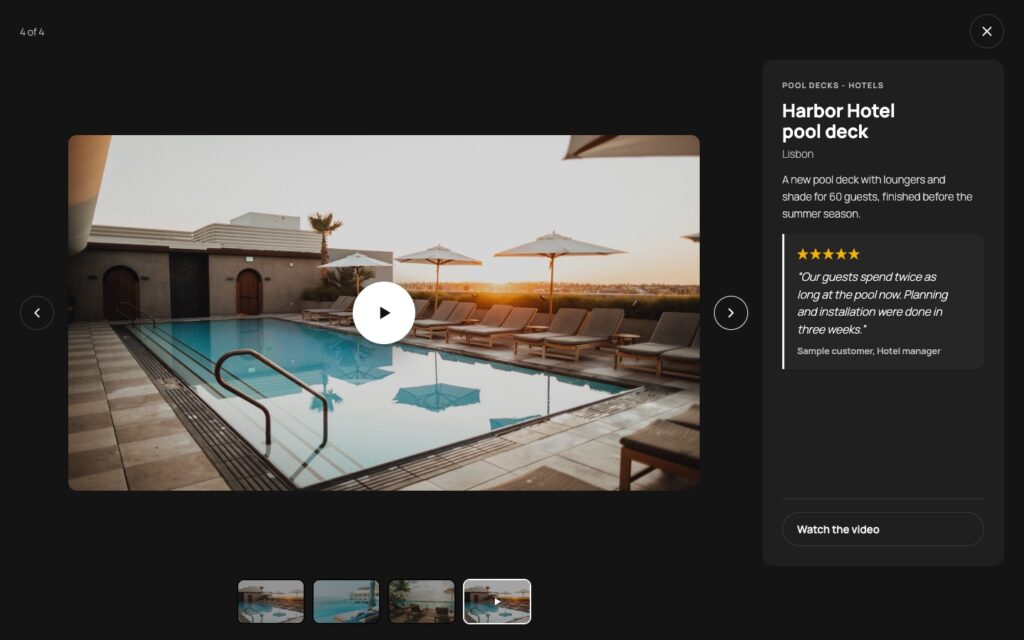
One video per project plays inside the lightbox as its own slide. Paste a YouTube or Vimeo link into the Video field (unlisted Vimeo videos too, with their hash), or click Media Library and choose an MP4 or WebM file.
| How it behaves | |
|---|---|
| YouTube | plays from www.youtube-nocookie.com after the click and consent |
| Vimeo | plays from player.vimeo.com with “do not track” after the click and consent |
| Your own file | plays from your site right away, no third party, no consent. Only files on your own domain are accepted |
| Position in the lightbox | After the first photo (default), First: the lightbox opens with the video, or After all photos. The tile keeps showing the cover photo; if the before/after comparison is the cover, it stays first and the video follows it |
Tiles of projects with a video carry a small play symbol (switch it off per block), and the lightbox shows a Watch the video button that jumps to the video slide.
11. The Project Gallery block
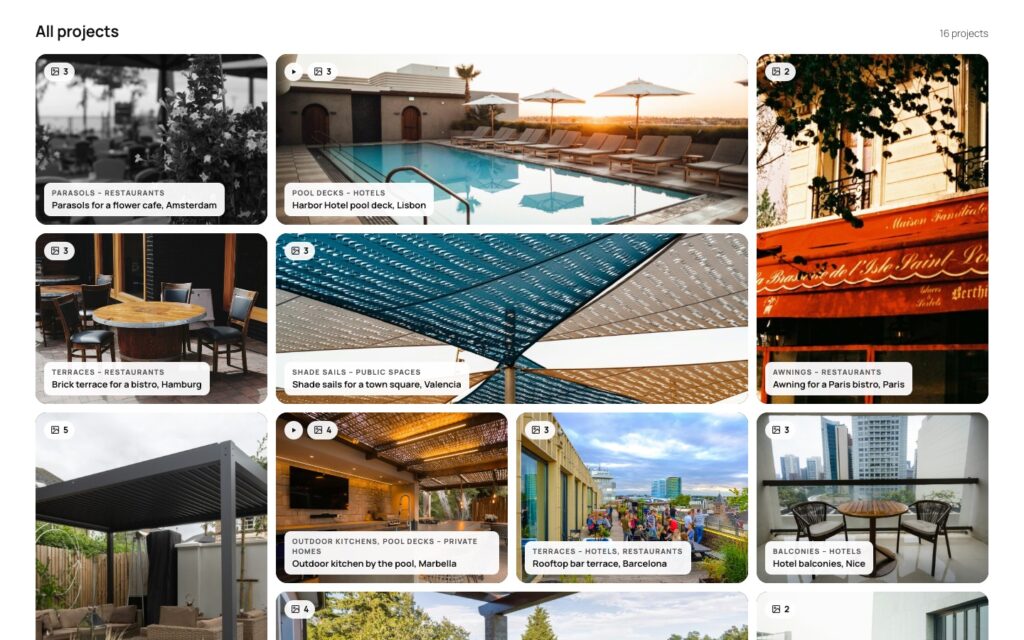
Insert the Project Gallery block on any page. It renders the heading, the product tiles, the industry buttons, the projects, a “Show more” button and, below, the product cards with your call-to-action. The block sidebar has four panels:
Gallery
| Control | What it does |
|---|---|
| Heading above the filters | optional heading, for example “Our projects” |
| Layout | Grid (tile sizes from the project), Masonry (photos in their own shape) or Carousel (swipe sideways) |
| Projects before “Show more” | how many projects appear before the button; the carousel shows all |
| Product filter | show or hide the product tiles |
| Industry filter | show or hide the industry buttons |
Tiles
| Control | What it does |
|---|---|
| Columns | Automatic, 2, 3, 4 or 5. Fewer columns are used automatically where the space is too narrow |
| Tile height | Small, Medium or Large |
| Space between tiles | Small, Medium or Large |
| Project details | Small card on the photo, Title below the tile, Only on hover, or Hidden (only in the lightbox) |
| Product filter | Picture tiles or Slim buttons |
| Show | number of photos on the tile, video symbol on the tile, product and industry on the tile |
Show only
| Control | What it does |
|---|---|
| Products, Industries | limit this gallery to some products or industries, for example only hotel projects on the hotel page. Nothing selected = all projects |
Product links and button
Hover effect, tile frame, filter button style, counts, the before/after labels, the “New” badge and the lightbox colors are global and live under Projects > Settings; they apply to every gallery on the site.
12. Grid, masonry and carousel
| Layout | How it looks |
|---|---|
| Grid | rows of equal height. Each project can be Normal, Wide or Tall (set in the project), so a few large tiles break the rhythm. Crops photos to the tile |
| Masonry | columns in which every photo keeps its own shape; nothing is cropped. The order stays left to right, row by row |
| Carousel | one row that visitors swipe sideways, with scroll buttons on wide screens. Shows every project; good for the best five on a home page |
All three adapt to the width of the block, not of the window, so a gallery in a narrow content column or inside a Row or Stack group looks right too.
13. The lightbox
A click on a tile opens the project full screen on a dark, light or theme-colored stage (a setting). Around the photo: arrows, a counter, the thumbnails of all slides, and a panel with product, industry, name, place, partner, description, the customer quote and a Watch the video button. Slides are the photos, the before/after slider and the video, in the order set in the project.
| How it works | |
|---|---|
| Mouse | arrows, thumbnails, click outside to close |
| Keyboard | left and right arrow keys, Escape to close; on the before/after slider the arrow keys move the handle |
| Touch | swipe left and right; a tap is never taken for a swipe |
| Product page | “View product” leads to the product page set on the product |
| Call to action | the button from the block (for example “Request a quote”) appears in the lightbox too |


14. Product links and button
Below the gallery the block can show a “Found what you need?” section: one card per product that has a Product page set, with the cover of a matching project, and your call-to-action as the last card.
| Control | What it does |
|---|---|
| Show “Found what you need?” below the gallery | switch the section on or off |
| Heading | empty = “Found what you need?” |
| Text | an optional line under the heading |
| Button label | for example “Request a quote” or “Find a dealer”. Shown as a card and in the lightbox |
| Button link | the address the button leads to |
Note: without any product page and without a button link the section is not shown at all.
15. The shortcode
For the classic editor and page builders, [d9pg_gallery] renders the same gallery with the same options. Every attribute you leave out uses the default.
| Attribute | Values | Default |
|---|---|---|
layout | grid, masonry, carousel | grid |
heading | heading above the filters | none |
per_page | projects before “Show more” | 16 |
filters | 0 hides the product tiles | 1 |
industries | 0 hides the industry buttons | 1 |
links | 0 hides the product cards and button below the gallery | 1 |
products | comma-separated product slugs to show only | all |
industry | comma-separated industry slugs to show only | all |
cta_label | button label | none |
cta_url | button link | none |
columns | auto, 2 to 5 | auto |
size | s, m, l (tile height) | m |
gap | s, m, l | m |
info | card, below, hover, none | card |
product_filter | tiles or chips | tiles |
show_count | 0 hides the photo count on the tiles | 1 |
show_video | 0 hides the video symbol on the tiles | 1 |
show_tag | 0 hides product and industry on the tiles | 1 |
[d9pg_gallery layout="masonry" heading="Our projects" industry="hotels" cta_label="Request a quote" cta_url="/contact/"]16. Deep links
The gallery writes the selected product into the address, for example /projects/#terraces. Opening that address shows the gallery already filtered to that product; the fragment is the product slug. Use it in navigation, on a product page (“See terrace projects”) or in a sales email.
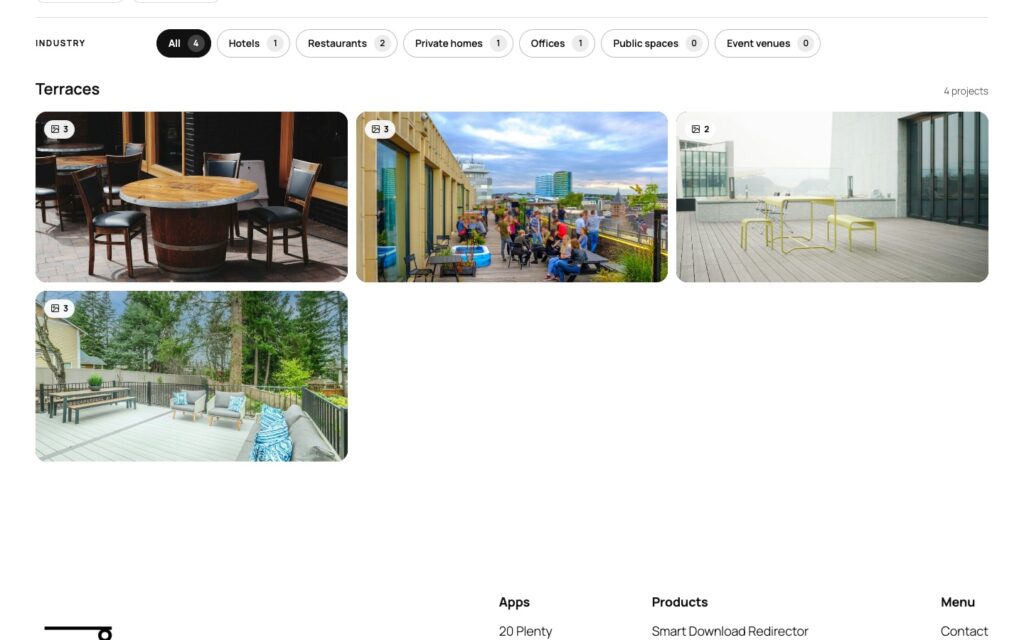
The fragment never reaches the server, so the page stays cacheable.
17. Settings
Projects > Settings holds the global look and behavior. A live preview next to the options updates as you change them; save to apply them on the site. Fonts and text color come from your theme there.
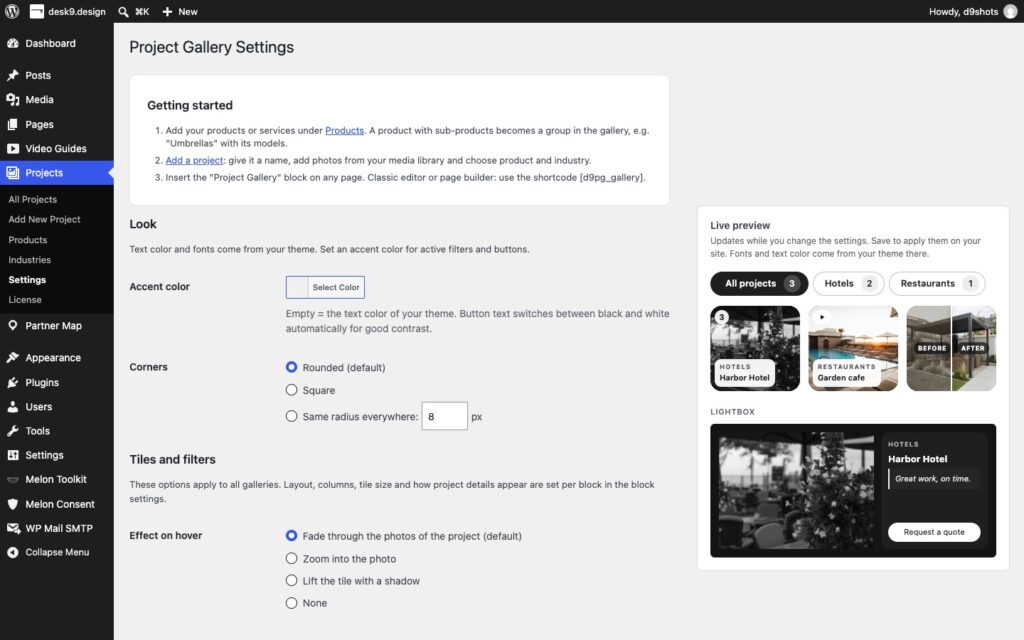
Look
| Option | What it does |
|---|---|
| Accent color | used for active filters and buttons. Empty = the text color of your theme. Button text switches between black and white automatically for good contrast |
| Corners | Rounded (default), Square, or Same radius everywhere with a pixel value |
Tiles and filters
| Option | What it does |
|---|---|
| Effect on hover | Fade through the photos of the project (default), Zoom into the photo, Lift the tile with a shadow, or none |
| Tile frame | none (default), Thin line or Soft shadow |
| Filter buttons | Rounded buttons (default), Tabs with underline or Square buttons |
| Lightbox | Dark (default), Light or Colors of your theme |
| Details on the tiles | show the number of projects in the filters; show the before/after labels on the tiles |
| “New” badge | projects published within this many days get a “New” badge; 0 = off |
Layout, columns, tile size and how project details appear are not here: they are per block, so two galleries on two pages can look different while sharing the same colors.
Privacy
| Option | What it does |
|---|---|
| Consent for YouTube and Vimeo | Use my cookie plugin if there is one (recommended), or Always ask with the built-in consent panel. See Privacy and cookie plugins |
Data
| Option | What it does |
|---|---|
| Delete all projects, products, industries and settings when the plugin is deleted | off by default. Photos in the media library are never deleted |
18. Privacy, consent and cookie plugins
A gallery page makes no request to a third party. Photos come from your media library; a project video from YouTube or Vimeo loads only after a visitor clicks play in the lightbox and has given consent.
| What happens | |
|---|---|
| Before the click | the video slide shows the cover photo and a play button. No script, no iframe, no cookie from the video service |
| The click | if your cookie plugin already has consent for YouTube or Vimeo, the video starts right away. Otherwise a short consent panel appears in the lightbox |
| Your own files | no third party, no panel, no consent |
Cookie plugins
| Plugin | What is checked |
|---|---|
| Borlabs Cookie 3 | services youtube and vimeo |
| Complianz | category marketing |
| Melon Consent | services youtube and vimeo. The desk9 cookie banner and content blocker, free on wordpress.org |
Services and category can be changed with the d9pg_consent_config filter, and a further cookie plugin can be added in JavaScript (see For developers).
What the plugin sends where
| When | What |
|---|---|
| A visitor plays a project video | the video is loaded from YouTube or Vimeo; the service then receives the visitor’s IP address and browser data. Nothing before that |
| License and updates | when you activate the license and when WordPress checks for updates (at most every 12 hours): product name, license key, site URL and installed version to desk9design.com. No visitor data |
Terms and privacy policies of the services: YouTube terms, Google privacy policy, Vimeo terms, Vimeo privacy policy, desk9 privacy policy.
19. WPML and Polylang
The plugin ships in English with a German translation and works with WPML and Polylang. A wpml-config.xml is included, so WPML knows which fields to translate and which to copy.
| How it works | |
|---|---|
| Projects | translate a project like any post. Place, description, before/after labels and the quote are translated; photos, video, partner and tile size are copied, so you pick the photos once |
| Products and industries | translated terms with their own names; the gallery shows the terms in the language of the page |
| Deep links | use the product slug of the page language |
20. Search engines
| What the plugin does | |
|---|---|
| Alt texts | every photo in the gallery and the lightbox gets an alt text from the project name, place and product when the photo has none of its own |
| Image sitemaps | the gallery is rendered on request, so SEO plugins would not find its photos. The plugin adds the project photos to the image sitemap entry of the page that holds the block, for Yoast SEO and Rank Math |
| Reviews | customer quotes are marked up as schema.org Review of your organization. Turn it off with the d9pg_review_schema_enabled filter |
21. License and updates
The license key is in your order email and under Subscriptions in your account. It activates as many sites as your plan allows: 1, 5 or unlimited.
1
Open Projects > License, paste the key into License key and click Activate license. The page answers “License activated. Updates are now delivered to this site.”
2
The status box shows Active on this site, the number of sites in use (for example “Sites: 1 of 5”) and Valid until. Check status and updates asks the license server again right away.
3
Updates now appear on Dashboard > Updates and on the Plugins screen like any other plugin. WordPress checks at most every 12 hours.
4
Moving the plugin to another site? Click Deactivate on this site first, so the slot is free for the new site. You can also free a slot under Subscriptions in your account.
| Status | Meaning |
|---|---|
| Active on this site | the key is valid and this site uses a slot; updates arrive |
| Not active on this site | no key, or the key was deactivated here; the plugin works, updates do not arrive |
| Expired or disabled | the subscription has ended or was refunded; renew under Subscriptions and click Check status |
| Unknown license key | a typo, or a key for another product |
| The license server could not be reached | a temporary network problem on the way to desk9design.com; try again later |

Note: all features work without an active license. What stops after expiry is the update check and support; the gallery and the settings keep working as they are.
22. Staging and moving sites
Staging and local sites do not use a slot. A site whose address is localhost, a .local, .test or .ddev.site domain or a subdomain starting with staging., dev., test. or local. activates without counting against your plan, so you can test an update before it goes live.
When you move a site to a new domain, deactivate on the old site before the move and activate on the new one afterwards. Projects, products, industries and settings travel with the database; the photos with the media library.
Cloning a site with a database copy keeps the license key in the copy. On the clone, deactivate the key if the clone should not use a slot.
23. For developers
The plugin adds nothing to your theme and needs no build step. A few filters and one JavaScript hook cover the common extensions.
| Filter | What it does |
|---|---|
d9pg_projects | change the list of projects before the gallery is rendered |
d9pg_consent_config | consent services and categories per provider (youtube, vimeo) for the cookie plugins |
d9pg_review_schema_enabled | return false to turn off the Review markup for customer quotes |
Another cookie plugin can be plugged in with a JavaScript adapter on window.d9pgConsentAdapters: an object with active(), given( provider ) and optionally save( provider ).
window.d9pgConsentAdapters = window.d9pgConsentAdapters || [];
window.d9pgConsentAdapters.push( {
	active: function () { return !! window.myCookieTool; },
	given: function ( provider ) { return window.myCookieTool.allowed( provider ); },
	save: function ( provider ) { window.myCookieTool.allow( provider ); }
} );
Data model: projects are the post type d9pg_project, products and industries are the taxonomies d9pg_product and d9pg_industry, photos are regular attachments referenced by ID. Everything is in your database and travels with a normal WordPress export.
24. Troubleshooting and FAQ
The gallery is empty on the page.
A product has no tile.
The product tile shows a gray box around the image.
The project video does not start.
Can I have two galleries with different projects?
Do I need photos when I have a before/after pair?
Will Google show stars for my customer quotes?
Can I use it with the classic editor or a page builder?
What is the difference to the CodeCanyon edition?
Where do I get help?
25. Uninstall
Deactivating the plugin leaves everything in place. Deleting it under Plugins removes the plugin files and, by default, keeps your projects, products, industries and settings in the database, so a reinstall finds them again.
To remove the data too, switch on Delete all projects, products, industries and settings when the plugin is deleted under Projects > Settings > Data before you delete the plugin. Photos in the media library are never deleted; they are yours.
Deactivate the license on this site first (Projects > License), so the slot is free for another site.