Home / Plugins / Video Guides Pro

Prov1.1.4 · updated Oct 5, 2026 · GPL

Video Guides Pro: Your product videos and manuals in one library, without handing visitors to YouTube

Setup videos, how-tos and care guides grouped by product, with the matching manuals as download buttons right next to them. YouTube, Vimeo or your own MP4 files, a full-screen view with previous and next, and a player that loads nothing from a third party until someone clicks play. One plugin, one price, no free version to outgrow.
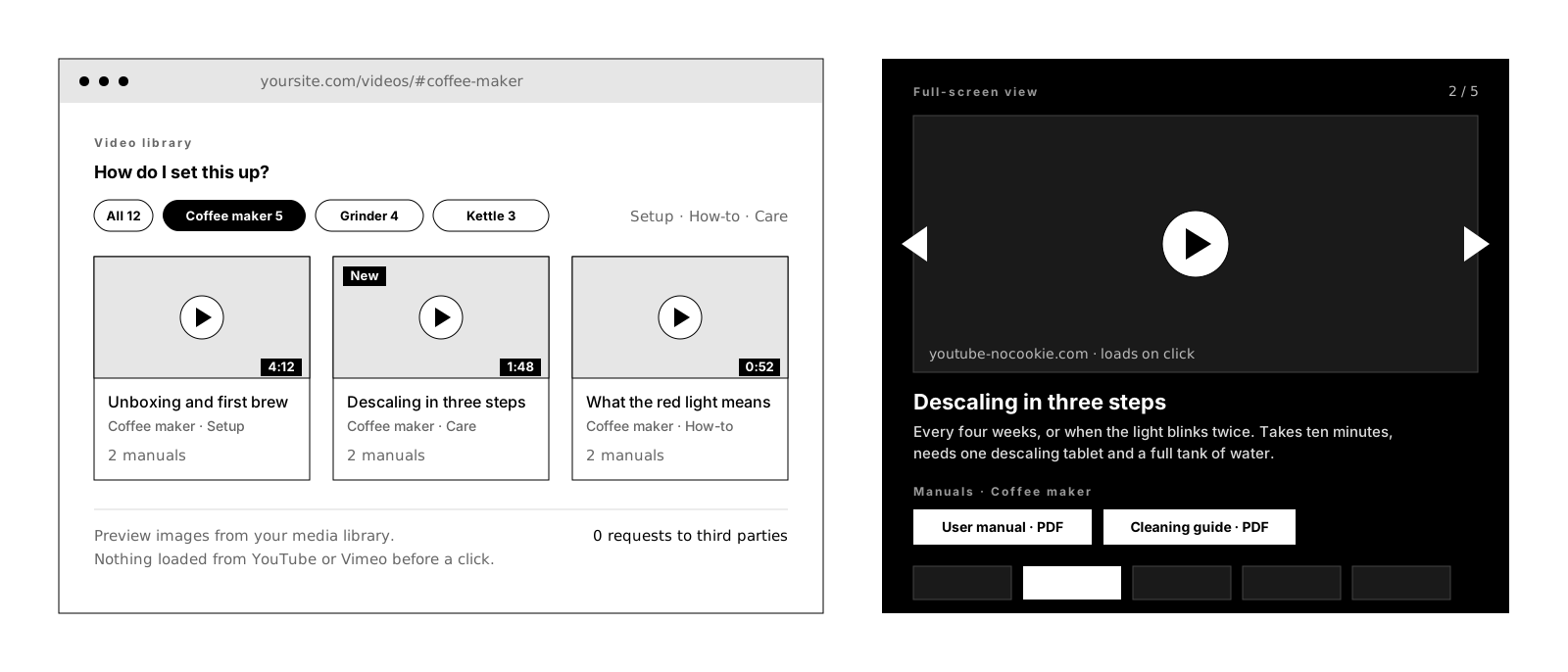
Video Guides Pro: a video library with product filter chips and three video cards showing preview image, length and product, next to the full-screen view on a dark stage with title, description, two manual download buttons and a strip of the other videos
The library groups every video by product; a click opens the full-screen view with the description, the manuals of that product and the strip to move on. Nothing here has contacted YouTube yet.

Live demo: a video library with four sample products on desk9.design (opens in a new tab). Pick a product, watch a video full screen and see the consent panel before YouTube loads.

Do product videos have to mean YouTube on your page?

Most support pages are a column of YouTube embeds. Every one of them loads Google on page view, before anyone has clicked, and takes a consent entry with it. The manual is somewhere else on the site, the videos are in the order someone uploaded them, and a visitor with a question about one product scrolls past everything else.

This plugin starts from the product. Every video belongs to one, every manual belongs to one, and the library shows them together with a filter row on top. The preview image comes from your own media library. YouTube plays from youtube-nocookie.com and Vimeo with do-not-track, and only after a click, or right away if your cookie plugin already has consent. Your own MP4 or WebM files play from your own server, and no third party is involved at all.

Before a click, nothing is loaded from YouTube or Vimeo: no script, no cookie, no visitor IP. The preview image is yours, the consent panel is built in, and your cookie plugin can take over that decision.

One click, the whole answer

A click on a card opens the video large on a dark stage (or a light one, or one in your theme colors) with its title, its description, its product and that product’s manuals as download buttons. Visitors move to the previous or next video with the arrows, the keyboard or a swipe, or jump to any video in the strip below. Every video has its own link, so support can send #video-123 and the visitor lands in the right place.

On a phone the filter row becomes swipeable chips or a bottom sheet, stays on top while scrolling and hides while scrolling down. Deep links like /videos/#my-product open the page already filtered: the link for the packaging insert, the QR code on the machine or the reply in a support ticket.
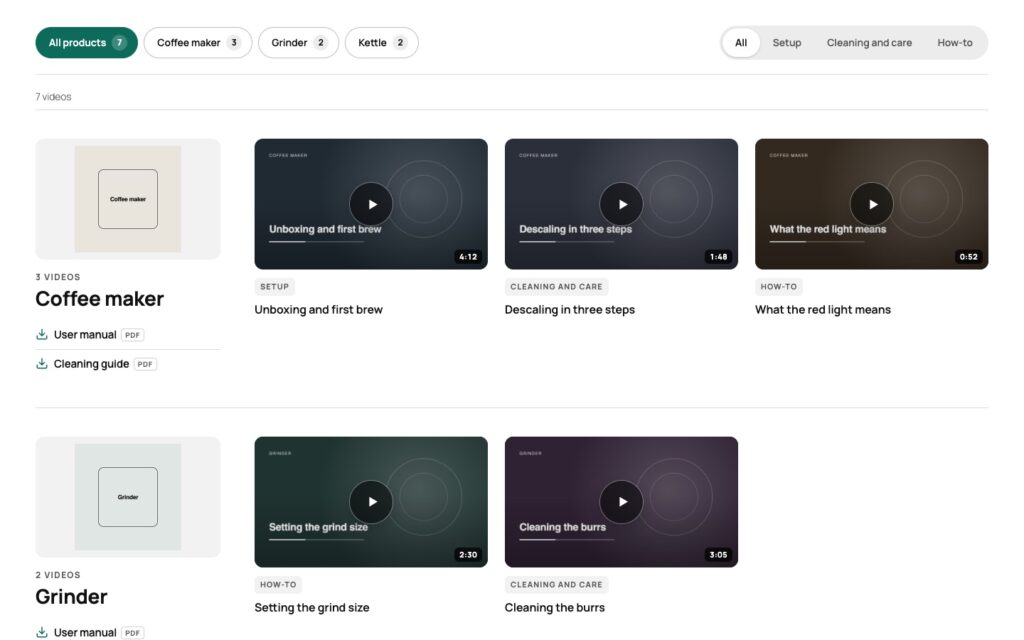
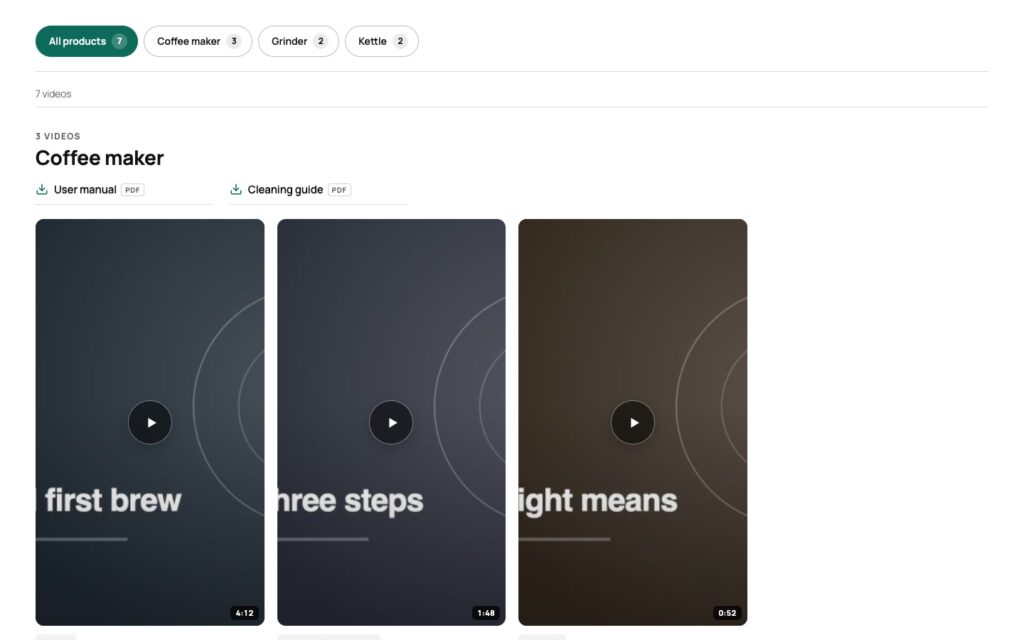
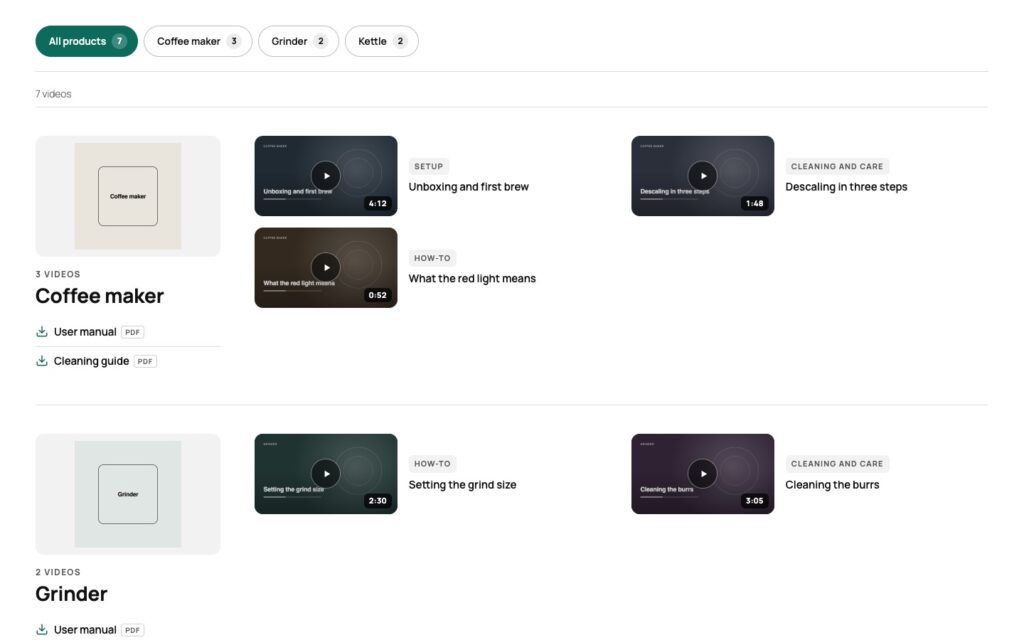
Video library with the product filter All products, Coffee maker, Grinder and Kettle, a video type filter with All, Setup, Cleaning and care and How-to, and the Coffee maker product with its image, two manual download buttons and three video cards showing preview image, length and video type.
Every product with its image, its manuals and its videos, and two filters on top.
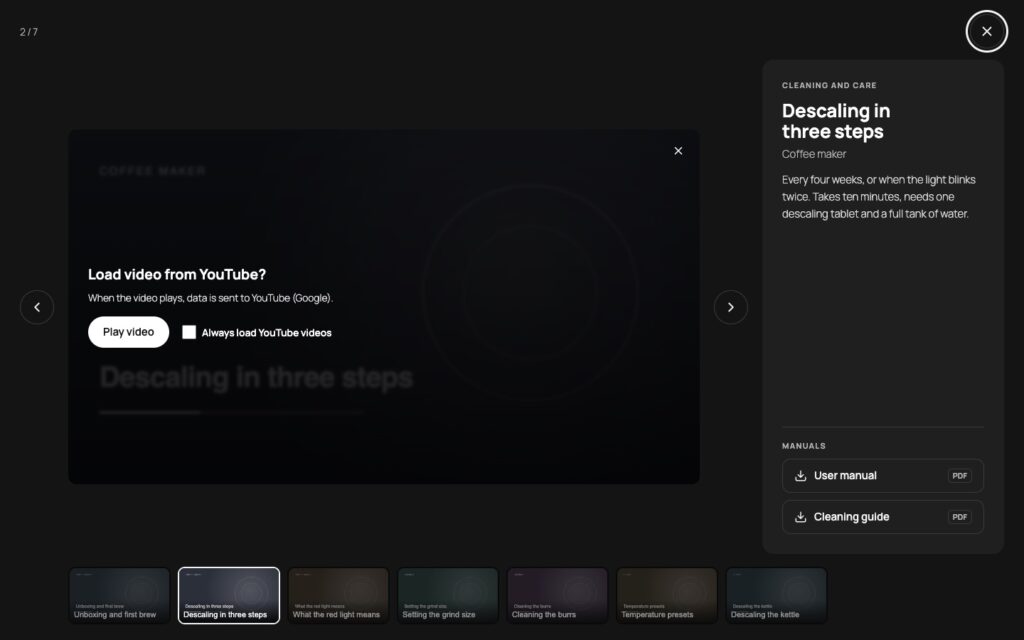
Full-screen view on a dark stage with the consent panel Load video from YouTube over the preview image, previous and next arrows, a counter reading 2 of 7, the title Descaling in three steps with its description and product, two manual download buttons and a strip of all seven videos below.
One click: video, description, the manuals of the product, previous and next. YouTube is asked only now.

How it works

Products first, then videos
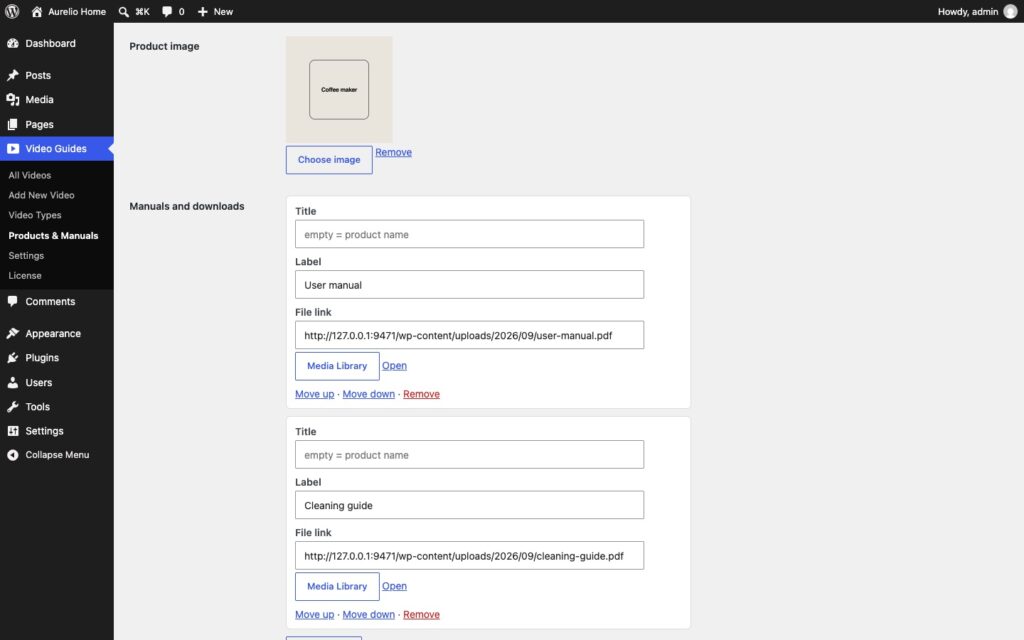
A product is a term with a name, an image and its manuals: PDFs or other files from your media library, in the order you set. Video Guides, Products & Manuals is where the catalog lives. Products can be translated with WPML or Polylang, and a translated product carries its own manuals, so the library and the full-screen view show only the files of the current language.

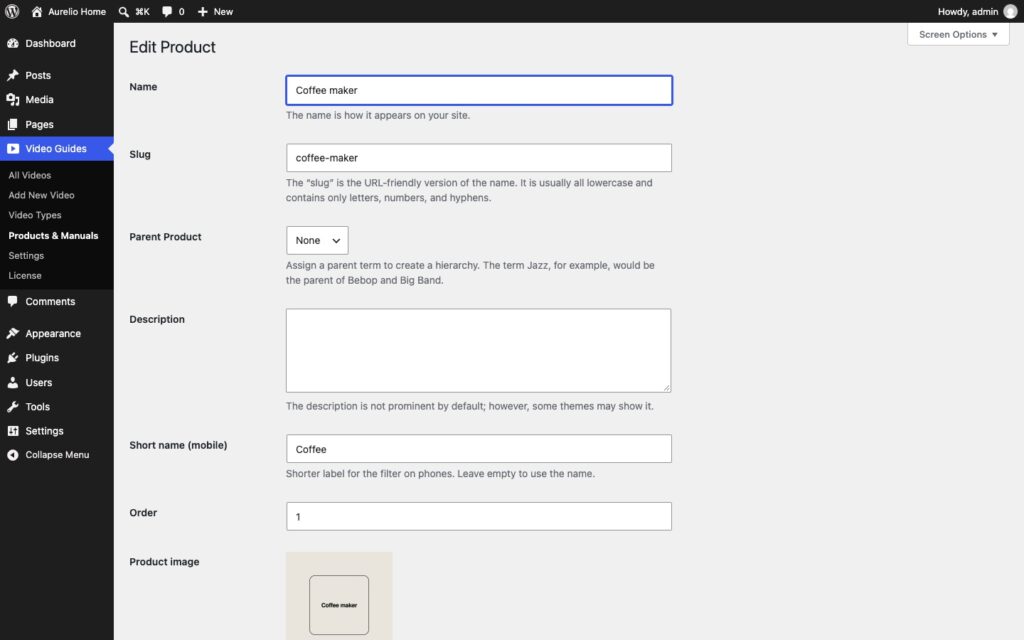
The Edit Product screen with name, slug, parent product, description, the short name for phones, the order and the product image.
A product: name, a short name for phones, order and image.
The Manuals and downloads section of a product with two manuals, each with title, label, file link, a Media Library button and Move up, Move down and Remove links.
Its manuals: label, file from the media library, order.

Paste a link or pick a file

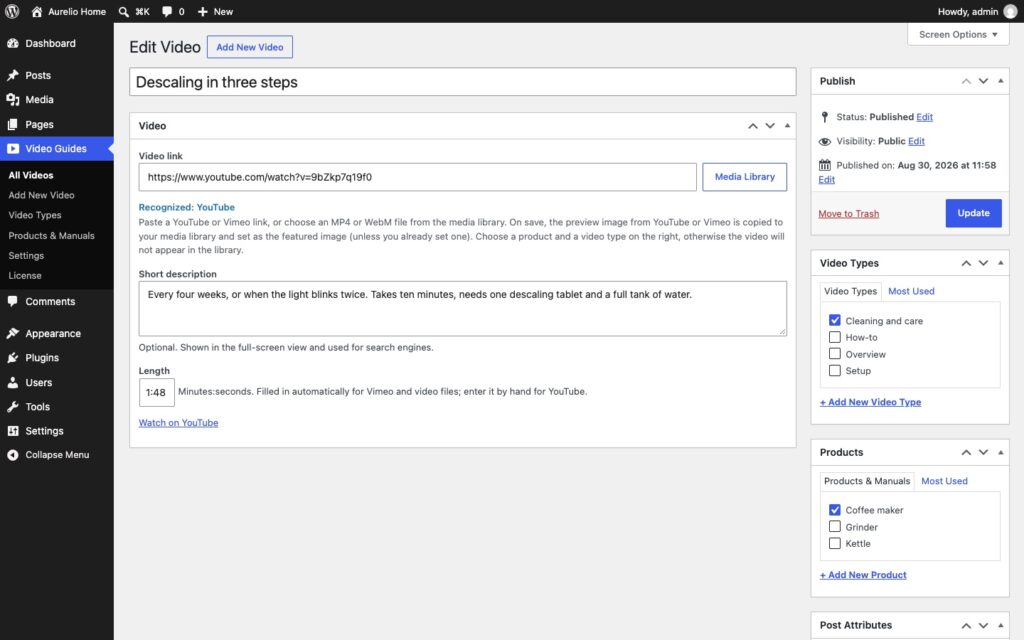
Under Add Video you paste a YouTube or Vimeo link (unlisted Vimeo videos included) or choose an MP4 or WebM file from your media library. The preview image is fetched once and stored in your media library; for your own files you pause at a good frame and save it with one click. Add a short description, the product and the video type, and the length shows up on the card by itself.

The video edit screen with the Video box: the video link recognized as YouTube, the short description, the length field, a Watch on YouTube link, and the Video Types and Products boxes in the sidebar.
Paste a link, the source is recognized; description, length, product and type next to it.
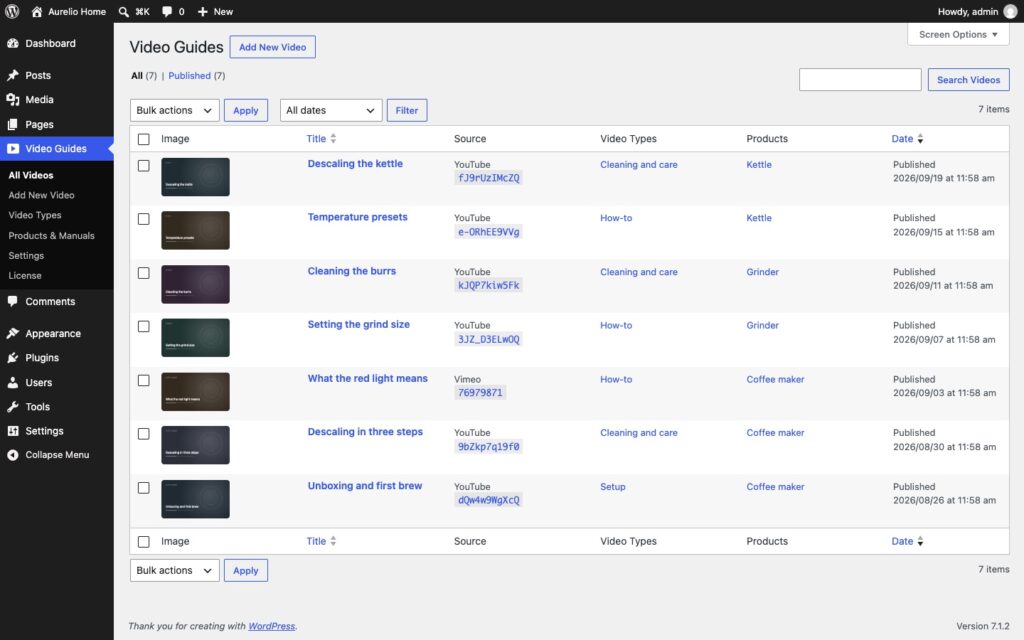
The Videos list in the WordPress admin with columns for title, product, video type, length and date.
All videos, with product, type and length in the list.

One block, the whole library

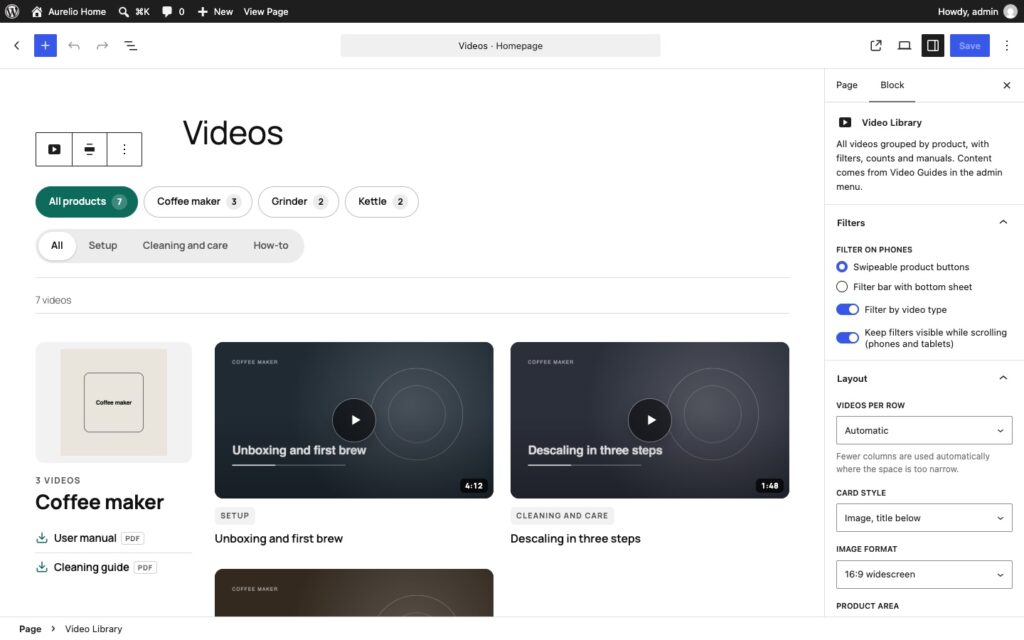
The Video Library block puts every video on the page, grouped by product, with the product filter, an optional video type filter, counts and deep links. Per block you choose videos per row, the card style (standard, title on the image, or list), the image format including 9:16 for Shorts and Reels, and whether a click opens the full-screen view or plays right in the card. The Manuals block lists every manual as download cards, and the Video block places a single video anywhere.

The block editor with the Video Library block selected and its sidebar open: the Filters panel with filter on phones, filter by video type and keep filters visible, and the Layout panel with videos per row, card style, image format and product area.
The block sidebar: filters, videos per row, card style, image format, product area.

It looks like your theme

Text color and fonts come from the theme. In the settings you set an accent color and the corner style, then the play button, the hover effect, the card frame, the filter style, a New badge for recent videos, and a light or dark full-screen view, with a live preview that changes before you save. Every video on the page ships schema.org VideoObject markup for search engines.

The Video Guides Settings screen with the Getting started box, the accent color, the corner style and the play button options, and the live preview on the right showing filter buttons, two video cards and the full-screen view.
Accent color, corners, play button, and a live preview that changes before you save.

Who uses it

Manufacturers

How do I set this up, how do I clean it, what does this light mean? One product, its videos and its manual on one screen, plus a deep link for the QR code on the packaging.

Retailers and dealers

A video per product line, filtered by brand or range, with the data sheet next to it. Customers find the answer before they call, and the page never phones Google on their behalf.

Makers of software and devices

Release walkthroughs and feature tours as Shorts or in 16:9, a card per topic, the changelog PDF as a manual. Unlisted Vimeo videos for the parts that are not public yet.

Agencies building for clients

A support library the client fills in themselves: paste a link, pick a product, done. The look follows the theme, so it fits the site you built without a single override.

Plans

There is one plugin and it has every feature on this page. The plans differ in one thing only: how many sites the license key activates.

1 site

€49/year

for 1 site

All Pro features, one year of updates and support.

Get Pro →

5 sites

€99/year

for 5 sites

All Pro features, one year of updates and support.

Get Pro →

Unlimited

€169/year

unlimited sites

All Pro features, one year of updates and support.

Get Pro →

14-day money-back. Renews yearly at the same price, cancel anytime. Keeps working after expiry, updates and support stop. The plugin is GPL: what you buy is a year of updates and support for the sites in your plan, and the license key that delivers them.

What it does not do

This is the part most plugin pages leave out.

It does not host your videos. YouTube and Vimeo videos play from their servers after the click; your own files play from your media library exactly as you uploaded them. There is no transcoding, no adaptive streaming and no CDN in the plugin. A 400 MB MP4 stays a 400 MB MP4.

It does not import a channel. Every video is added one at a time: paste the link, pick the product. There is no YouTube playlist or channel sync, and no API key to enter.

No chapters, no comments, no likes. The player is the platform player or the browser player. What the plugin adds is the stage around it: title, description, manuals, previous and next. Chapter marks, comments or reactions are not part of it.

Filters, not search. Visitors narrow the library by product and by video type. There is no free-text search box across titles and descriptions.

Files from your own site only. A video file has to live on your own domain. Links to MP4 files on other servers are not accepted, because the privacy promise on this page would not hold for them.

It ships in English and German. Every string is translatable and the plugin works with WPML and Polylang. The interface arrives in English with a German translation included.

Why not a YouTube playlist embed?

A playlist embed is YouTube’s page inside yours: its order, its related videos, its cookies, and Google on every page view whether the visitor scrolls that far or not. It knows nothing about your products, and the manual is a separate download somewhere else.

Here the structure is yours: products, video types, manuals, descriptions, all in your database and rendered by your server. The video platform is a choice per video: YouTube today, Vimeo for the unlisted one, your own file for the one that must not leave the house. None of them is contacted until someone asks.

Set up in three steps

01

Install and activate

Upload the ZIP from your account under Plugins, Add New, Upload Plugin, and activate it. The license key arrives by email and goes into Video Guides, License; from then on updates arrive inside WordPress. Every feature works before the key is in.

02

Products, then videos

Under Video Guides, Products & Manuals add your products, each with an image and its manuals if you like. Then Add Video: paste a YouTube or Vimeo link or choose a file, pick the product and the video type, save.

03

Place the block

Add the Video Library block to a page. Pick videos per row, the card style and the image format in the block sidebar, set the accent color and the look under Video Guides, Settings. Then share the deep link.

Pro only, and what that means

Most desk9 plugins have a free version on wordpress.org and a Pro that adds to it. This one does not: it is the whole plugin, sold once, with nothing held back for a higher tier. What you pay for is a year of updates and support for the sites in your plan, and the license key that delivers them inside WordPress.

The plugin is GPL, like everything from desk9. It never contacts our servers on behalf of a visitor; the only calls to desk9design.com are the license check and the update check from your admin, with the product name, the key, your site URL and the installed version. After the year the plugin keeps working; only updates and support stop until you renew. If something is missing, the ticket form is one click away in your account.

Screenshots
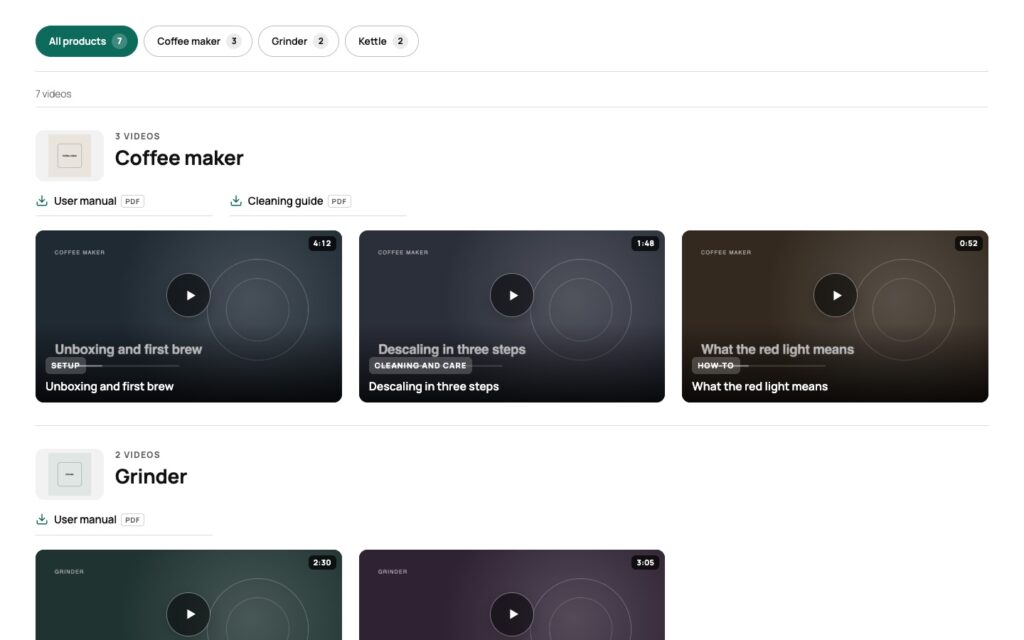
Three more looks of the same seven videos, the Manuals block, the library on a phone, the consent panel and the license screen.

Video library with the card style Title on the image, three videos per row and the product area above the videos.
Title on the image, three per row, product above.
Video library with upright 9:16 cards for Shorts and Reels, four per row, and the minimal product area with name and manuals only.
9:16 for Shorts and Reels, four per row.
Video library in the list card style with small images, one video per row with title, type and length.
The list style: small images, one video per row.
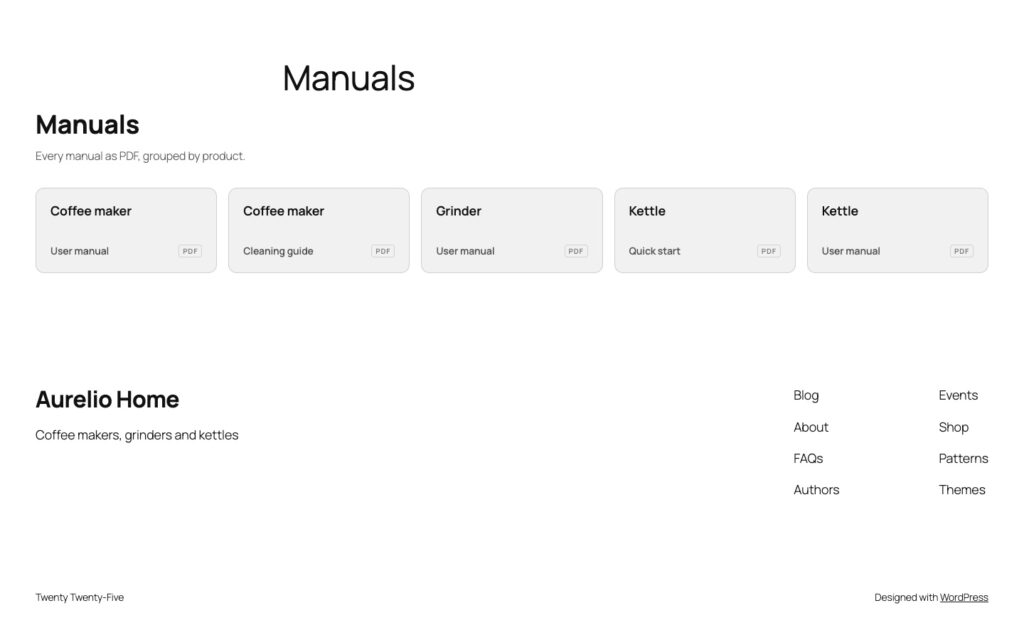
The Manuals block with the heading Manuals, an introduction line and download cards grouped by product, each with label and PDF badge.
The Manuals block: a download center without a single video.
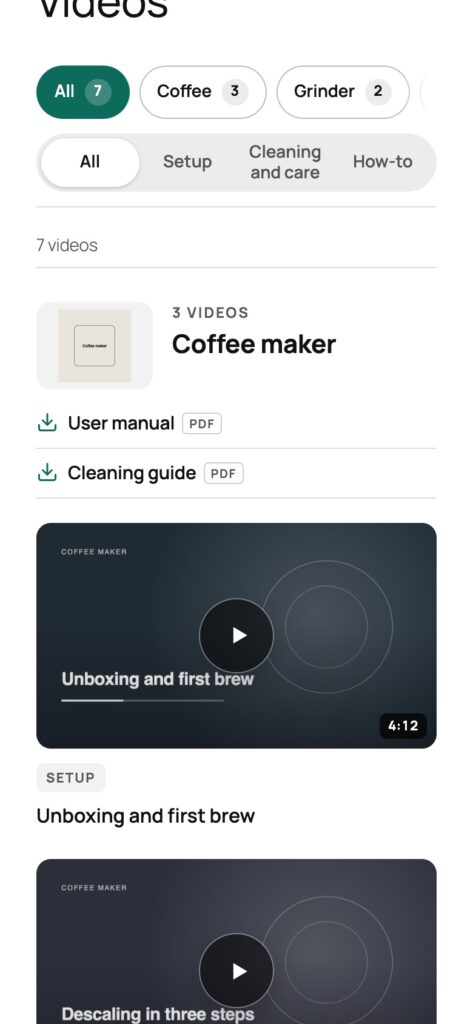
The video library on a phone with swipeable product buttons, the video type filter and the first video cards.
On a phone: swipeable product buttons.
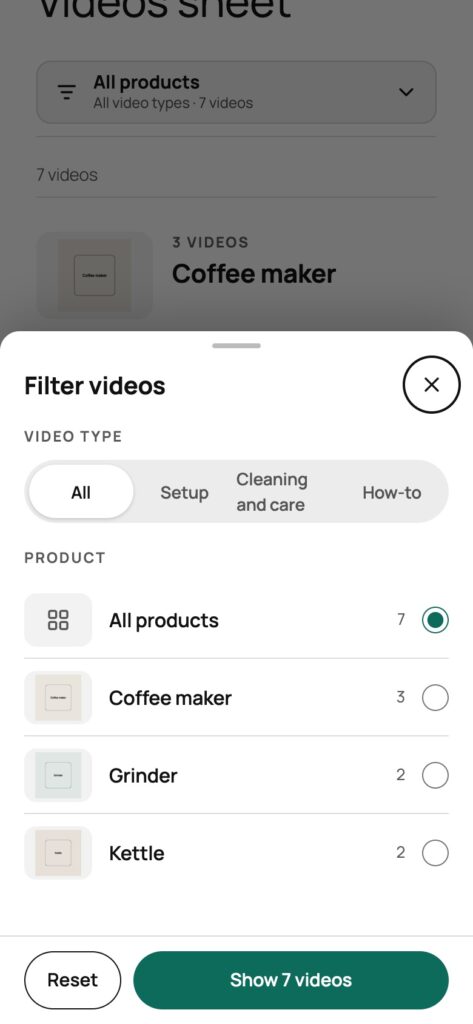
The bottom sheet filter on a phone: a Filter videos panel with the video type row, a product list with images and counts, a Reset button and a Show 7 videos button.
Or a bottom sheet with types and products.
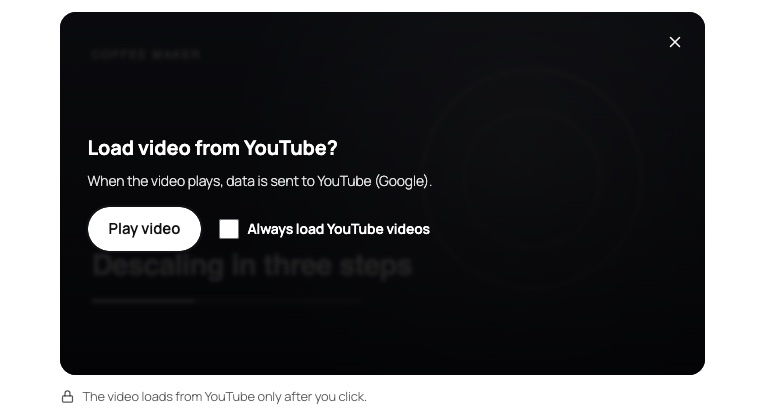
The built-in consent panel over a video: Load video from YouTube?, the note When the video plays data is sent to YouTube (Google), a Play video button and the checkbox Always load YouTube videos.
The built-in consent panel, when no cookie plugin has answered yet.
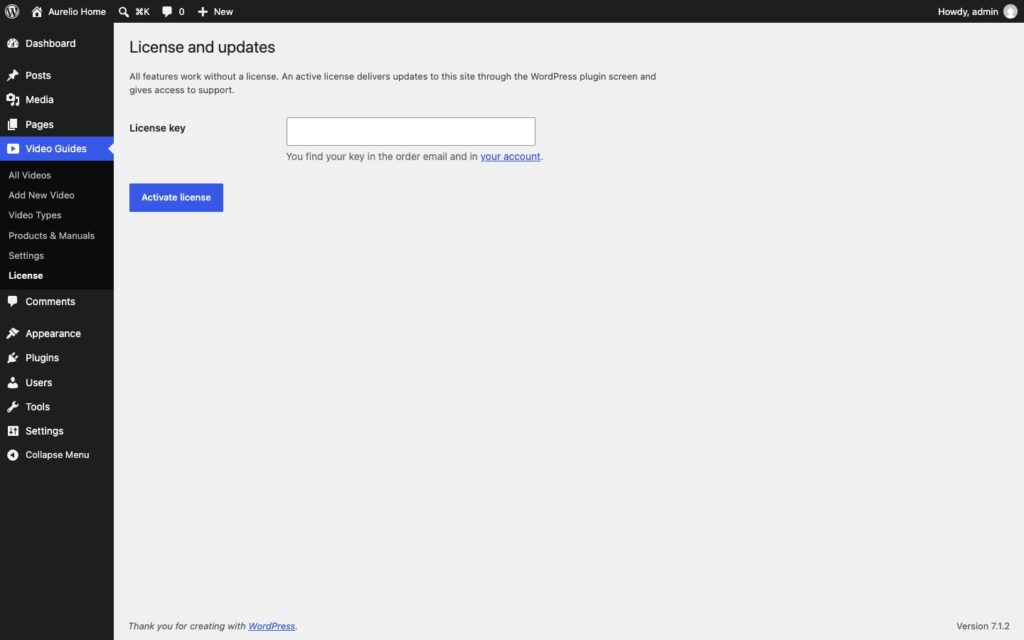
The License and updates screen with the license key field, the Activate license button and the status box.
Video Guides, License: paste the key, activate, done.

Frequently asked questions

Does it set cookies or load anything from YouTube or Vimeo before a click?

No. Before a click only the preview image from your own media library is shown. When a visitor chooses "always load", that choice is stored in your cookie plugin if you use Borlabs Cookie or Melon Consent, otherwise in the browser's localStorage, not in a cookie.

Which cookie plugins does it work with?

Borlabs Cookie 3 (services youtube and vimeo), Complianz (category marketing) and Melon Consent (services youtube and vimeo). If your cookie plugin already has consent, the video starts right away; otherwise the built-in consent panel appears inside the player. Services and category can be changed with the d9vg_consent_config filter, and you can switch the integration off and always use the built-in panel.

Do my own video files need consent?

No. Files from your own media library are played by the browser directly from your site; no third party is involved. That is also why only files on your own domain are accepted.

Can I use unlisted Vimeo videos?

Yes. Paste the link with its hash and the video plays for visitors of your page without being findable on Vimeo.

Where does the preview image come from?

For YouTube and Vimeo the plugin fetches it once when you save the video, in the admin, and stores it in your media library; only the video ID or link is sent. For your own files you pause the video at a good frame and save that frame as the preview with one click.

Does it work with the classic editor or a page builder?

Yes. [d9vg_library] renders the library with the same options as the block, [d9vg_video id="123"] a single video and [d9vg_manuals] the manuals. The blocks are there for the block editor.

Are manuals translated with WPML or Polylang?

Yes. Manuals are stored per product, and a translated product can carry its own manuals. The Manuals block, the library and the full-screen view show only the manuals of the current language, and a fallback language covers videos that have no translation yet.

Where is the data stored, and how do I move it?

Videos are a post type, products and video types are taxonomies, manuals are term meta, and the preview images are regular attachments. Everything is in your database and travels with a normal WordPress export. On uninstall you choose whether the data stays or goes; images and PDF files in the media library are never deleted.

What is the difference to the CodeCanyon edition?

The same plugin. On desk9design.com you get a license key and updates inside WordPress through the License page; on CodeCanyon updates come through Envato and there is no license page.

What happens when my subscription expires?

The plugin keeps working exactly as configured. Updates, new features and support stop until you renew. No penalty, no data loss.

How many sites can I use it on?

As many as the plan you pick. A staging site never counts. You can move a license between sites from your account.

Can I upgrade to a bigger plan later?

Yes, from your account. You pay the difference for the rest of the year.

What if it is not for me?

14-day money-back guarantee, no questions asked. Renewals included.

Changelog

v1.1.4 · Oct 5, 2026Product photos fill the product tile and the filter thumbnail instead of floating as a narrow strip. Cutouts (PNG, WebP, SVG) stay fitted as before.
v1.1.3 · Sep 30, 2026Live preview in the settings shows the count and length checkboxes correctly, and the mini full-screen view keeps its text colors. The block keeps its full width in the editor inside Row and Stack groups.

More from desk9

Cookie Banner & Content Blocker The consent plugin this library talks to: Melon Consent, free on wordpress.org.

Partner Map Locator Where to buy the product the video explains: dealers on a map that contacts nobody until you say so.

All desk9 plugins Maintained plugins, most of them free.

Every video, every manual, one product at a time. No call to YouTube until someone asks.

Your subscription is what funds the next release.

Pro is the whole plugin

No free version to install first. Upload the ZIP from your account, activate it, paste the license key under Video Guides, License. Every feature works before the key is in; the key brings the updates.

license key by email / updates inside WordPress

At a glance

Pro
Version1.1.4
Last updateOct 5, 2026
Requires WP6.5+
Tested up to7.1
PHP7.4+
LicenseGPLv2 or later