Video Guides Pro
v1.1.2
Video Guides Pro
This manual covers the plugin from desk9design.com and CodeCanyon: products and manuals, adding videos from YouTube, Vimeo or your own files, the three blocks and their shortcodes with every option, deep links, the settings, privacy and cookie plugins, WPML and Polylang, licensing and updates. There is no free version; every section applies to every plan.
1. Overview
2. Requirements
3. Installation
4. Quick start
5. Products and manuals
6. Adding videos
7. YouTube, Vimeo and your own files
8. The Video Library block
9. The library shortcode
10. The Video block and shortcode
11. The Manuals block and shortcode
12. Deep links
13. Settings
14. Privacy, consent and cookie plugins
15. WPML and Polylang
16. Structured data
17. License and updates
18. Staging and moving sites
19. For developers
20. Troubleshooting and FAQ
21. Uninstall
1. Overview
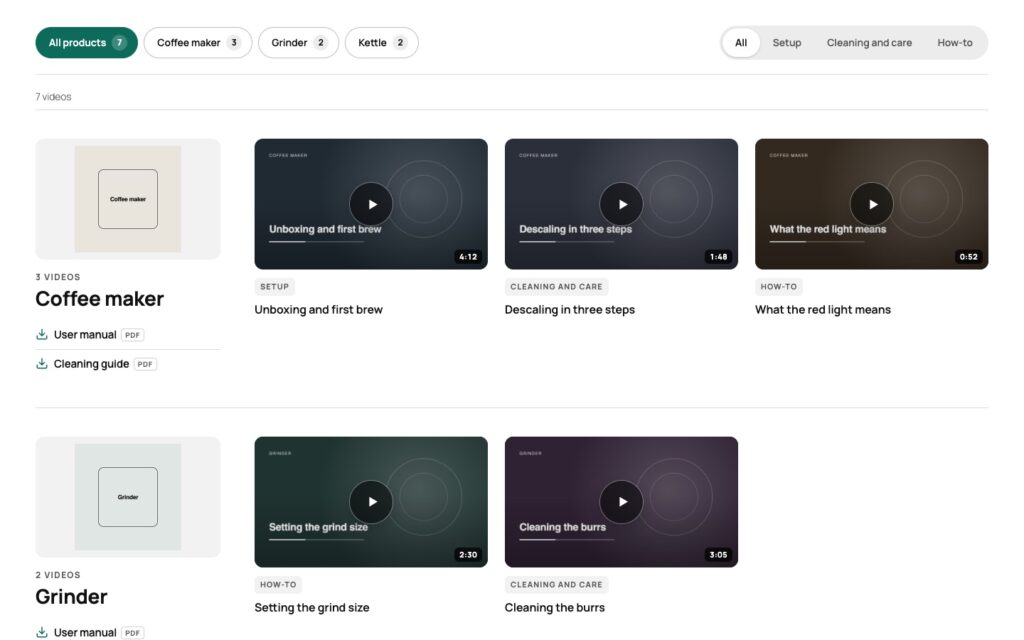
Video Guides Pro turns your setup, how-to and product videos into a library grouped by product, with the matching manuals right next to them. Visitors filter by product, open a video in a full-screen view with its description and the product’s manuals as download buttons, and move on to the next one with the arrows, the keyboard or a swipe. Every video has its own link, every product its own deep link.
Videos come from YouTube, from Vimeo (unlisted videos included) or from MP4 and WebM files in your media library. Before a click nothing is loaded from YouTube or Vimeo: the preview image is yours, the player appears after the click, and your cookie plugin can take over the consent decision. Files from your own site play without any third party.
There is one edition of the plugin with every feature. What you buy on desk9design.com is a year of updates and support for the sites in your plan and the license key that delivers the updates inside WordPress. The plugin keeps working after the year; only updates and support stop until you renew.
| Video Guides Pro | |
|---|---|
| Content | Videos, products (with image and manuals) and video types, all in your database |
| Sources | YouTube, Vimeo (also unlisted), MP4 / WebM / MOV files from your media library |
| Blocks | Video Library, Video (Two-Click), Manuals |
| Shortcodes | [d9vg_library], [d9vg_video], [d9vg_manuals] |
| Player | Two-click with a built-in consent panel; full-screen view with previous / next, keyboard, swipe and a video strip |
| Cookie plugins | Borlabs Cookie 3, Complianz, Melon Consent (our own, free on wordpress.org) |
| Languages | English and German included, WPML and Polylang supported |
| Search engines | schema.org VideoObject markup per video on the page |
| Admin | own menu Video Guides with Videos, Add Video, Products & Manuals, Video Types, Settings and License |
2. Requirements
| WordPress | 6.5 or newer (tested up to 7.1) |
| PHP | 7.4 or newer |
| Theme | none; works with any block or classic theme, text color and fonts are inherited |
| Page builders | block editor for the blocks; classic editor and page builders through the shortcodes |
| Cookie plugin | optional. Borlabs Cookie 3, Complianz or Melon Consent take over the consent decision; without one the built-in consent panel is used |
| External services | none on page view. YouTube or Vimeo only after a click on a video from that service; your own files never leave your server |
| Build tools | none. No build step, no external libraries, no tracking |
3. Installation
1
Download the ZIP desk9-video-guides-pro-1.1.2-desk9design.zip from your account. The license key is in your order email and under Subscriptions.
2
In your WordPress admin go to Plugins > Add New > Upload Plugin, select the ZIP, click Install Now, then Activate.
3
A new top-level menu Video Guides appears with Videos, Add Video, Products & Manuals, Video Types, Settings and License.
4
Open Video Guides > License, paste the key and click Activate license. From now on updates arrive through the normal Plugins screen. Every feature works before the key is in. The key brings the updates and support; nothing else is locked.
Note: if you tested the free version “Desk9 Video Guides” on this site earlier, Pro takes over its videos, products, manuals and settings on activation and deactivates the free plugin. You can delete the free version afterwards; your pages keep working.
4. Quick start
Ten minutes from an empty install to a library on a page. Products first, because every video and every manual belongs to one.
1
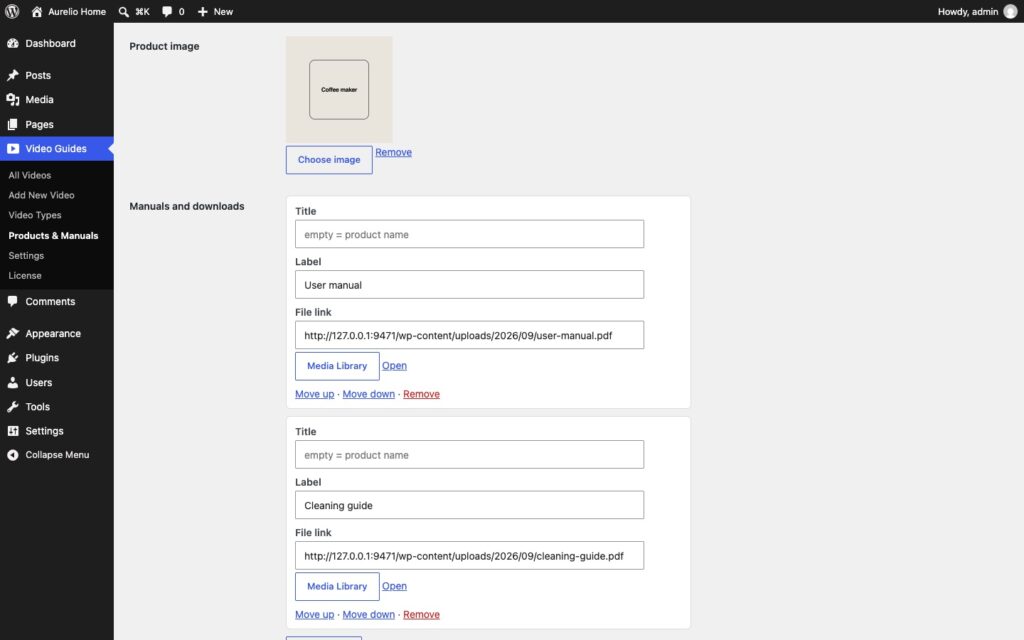
Go to Video Guides > Products & Manuals and add a product: name, optionally a short name for the filter on phones and a product image. Under Manuals and downloads add a PDF from the media library with a label such as “User manual”. Save.
2
Go to Video Guides > Add Video. Paste a YouTube or Vimeo link into Video link, or click Choose a video file for an MP4 from your media library. The plugin recognizes the source and fetches the preview image. Give the video a title, pick the product and the video type, add a short description, publish.
3
Open the page that should hold the library and insert the Video Library block. The block shows every published video grouped by product, with the product filter on top.
4
Open Video Guides > Settings and set the accent color and the corner style, so filters, play buttons and download links match your site. The live preview shows the result before you save.
That is the whole setup. Everything below explains the options in detail.
5. Products and manuals
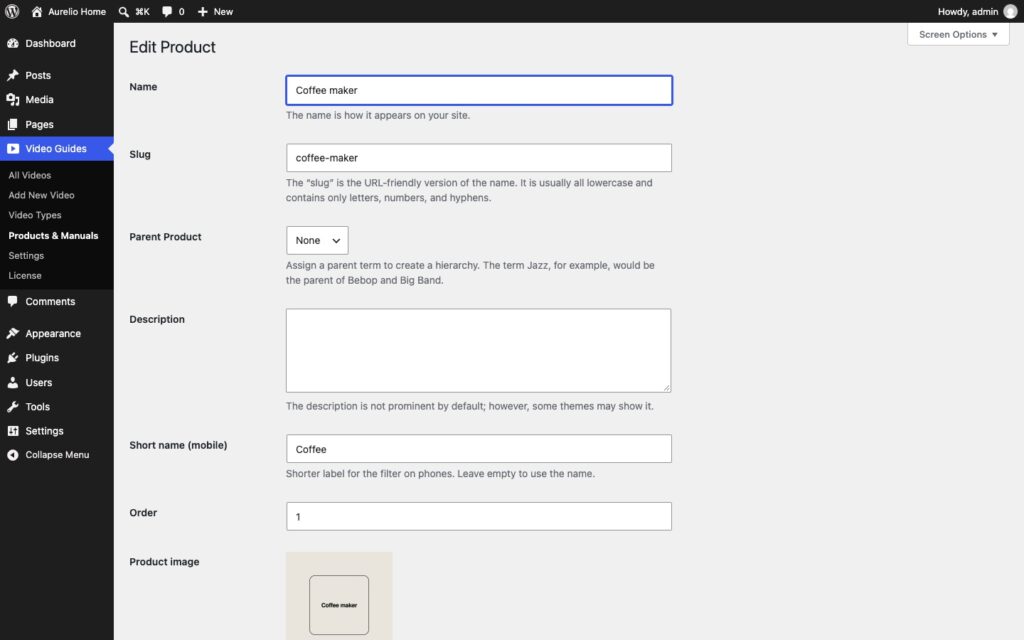
A product is what a visitor filters by. It is a term under Video Guides > Products & Manuals with these fields:
| Field | What it does |
|---|---|
| Name | the label on the filter button and on the cards |
| Short name (mobile) | a shorter label for the filter on phones; empty = the name |
| Product image | shown in the product area of the library and in the full-screen view |
| Order | the position in the filter row and in the library; lower numbers first |
| Parent product | products can be nested; the library lists each product with its own videos |
| Manuals and downloads | any number of files from the media library, each with a label (“User manual”, “Quick start”, “Data sheet”), sortable with Move up / Move down |
Manuals appear in three places: as download buttons under the videos of that product in the library, in the full-screen view of every video of that product, and in the Manuals block. A file without an extension in its name gets its type badge from the d9vg_manual_filetype filter. Manuals are only shown in the language of the page (see WPML and Polylang).
Note: a product that has manuals but no videos still appears in the library as a “manuals only” entry, so a data sheet is findable before the first video exists. Switch Manuals next to the videos off in a block and those products are hidden there too.
Video types
Video types are the second axis: Setup, How-to, Cleaning and care, Unboxing, whatever fits your products. They live under Video Guides > Video Types and can be nested. In the library they appear as a small line on each card and, when the block option Filter by video type is on, as a second filter next to the products.
6. Adding videos
A video is a post under Video Guides > Add Video. The Source box at the top decides where it plays from; everything else is the usual editor.
| Field | What it does |
|---|---|
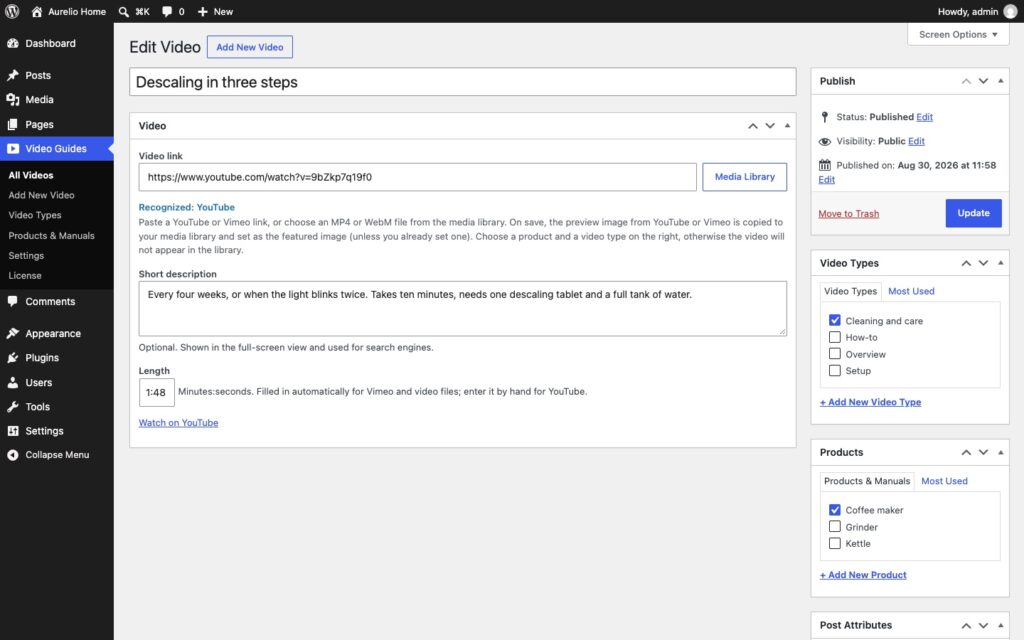
| Video link | paste a YouTube or Vimeo link. The box answers with “Recognized: YouTube” or “Recognized: Vimeo” and fetches the preview image when you save |
| Video file | click Choose a video file and pick an MP4, WebM or MOV file from your media library. Only files on your own domain are accepted |
| Preview image from the video | for files: play the video in the box, pause at a good frame and click Use this frame as preview image. The frame is saved to the media library and becomes the preview when you save the video. Any image set as featured image works as well |
| Length | minutes:seconds, shown on the preview image. Filled in automatically for Vimeo and for files; for YouTube enter it by hand (YouTube does not share it without an API key) |
| Short description | optional. Shown in the full-screen view under the title and used for the structured data |
| Product | the product this video belongs to; the library groups by it |
| Video type | the type shown on the card and used by the type filter |
| Featured image | the preview image. Fetched automatically for YouTube and Vimeo; replace it with any image from the media library if you like |
Within a product, videos appear in the order of their Order value (Page Attributes in the sidebar), then by publish date, oldest first, so a setup video stays in front of the care video however often you add new ones. A video published within the number of days set under Video Guides > Settings > New badge carries a “New” badge on its card.
Warning: the preview image is the only thing a visitor sees before the click, so make sure every video has one. A YouTube or Vimeo video without a fetched image shows a plain play button on an empty card.
7. YouTube, Vimeo and your own files
Three sources, one library. The card and the full-screen view look the same for all of them; what differs is what happens after the click.
| Source | How it behaves |
|---|---|
| YouTube | any watch, share, Shorts or embed link. Plays from www.youtube-nocookie.com after the click. The preview image is downloaded once from i.ytimg.com when you save the video in the admin; only the video ID is sent |
| Vimeo | a vimeo.com or player.vimeo.com link. Unlisted videos work: paste the link with its hash (vimeo.com/123456789/abcdef1234 or the ?h= form). Plays with “do not track” after the click. Preview image and length come from vimeo.com/api/oembed.json once, in the admin |
| Your own file | MP4, WebM or MOV from your media library. Played by the browser directly from your site, no third party, no consent needed. Preview image from a frame of the video; length read from the file |
Note: files on other servers are refused on purpose: the privacy promise of the plugin (“nothing is loaded from a third party before a click”) would not hold for them. Upload the file to your own media library instead, or host it on YouTube or Vimeo.
The plugin does not transcode, stream adaptively or cache your files. A large MP4 is served as it was uploaded, so keep files at web size (1080p H.264 is a good default) or use YouTube or Vimeo for long videos.
8. The Video Library block
Insert the Video Library block on any page. It renders every published video grouped by product, the product filter above, the manuals of each product next to or below its videos, counts, and deep links. The block sidebar has four panels:
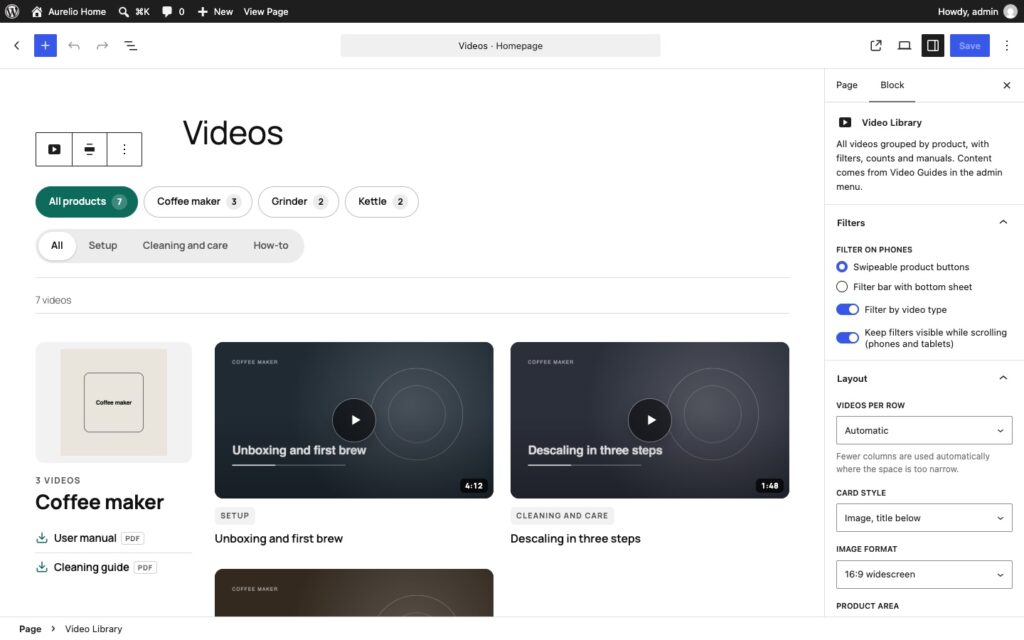
Filters
| Control | What it does |
|---|---|
| Products | show only these products; none selected = all products |
| Filter by video type | adds a second filter row with the video types |
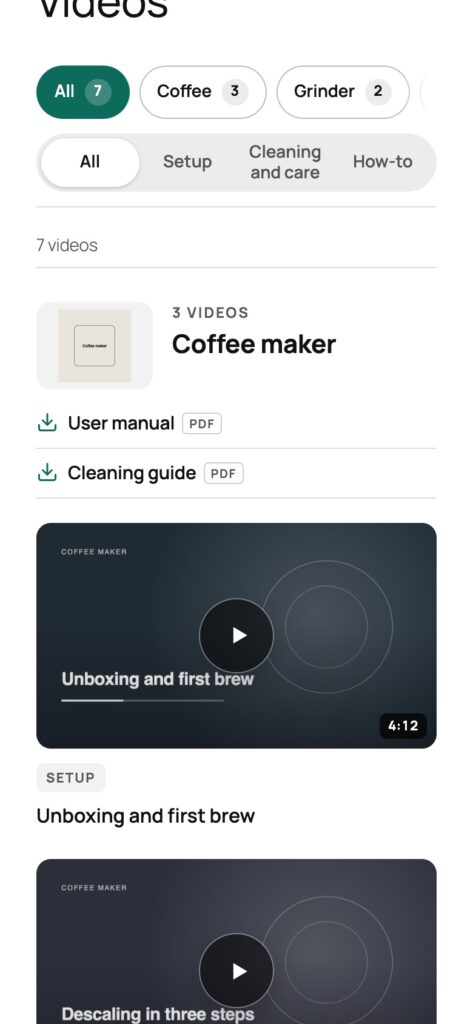
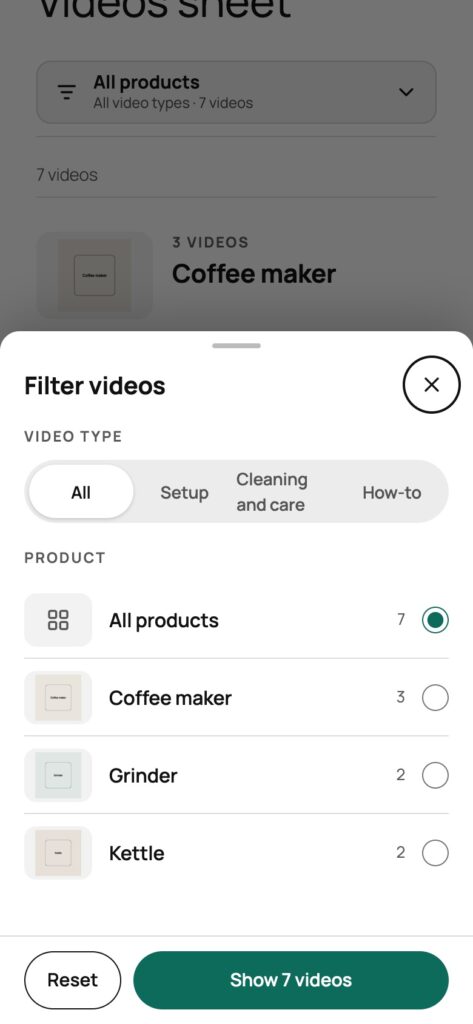
| Filter on phones | Swipeable product buttons (chips) or Filter bar with bottom sheet: a button that opens the product list from the bottom of the screen |
| Keep filters visible while scrolling | the filter bar sticks to the top on phones and tablets and hides while scrolling down |
Layout
| Control | What it does |
|---|---|
| Videos per row | Automatic, 2, 3 or 4. Fewer columns are used automatically where the space is too narrow |
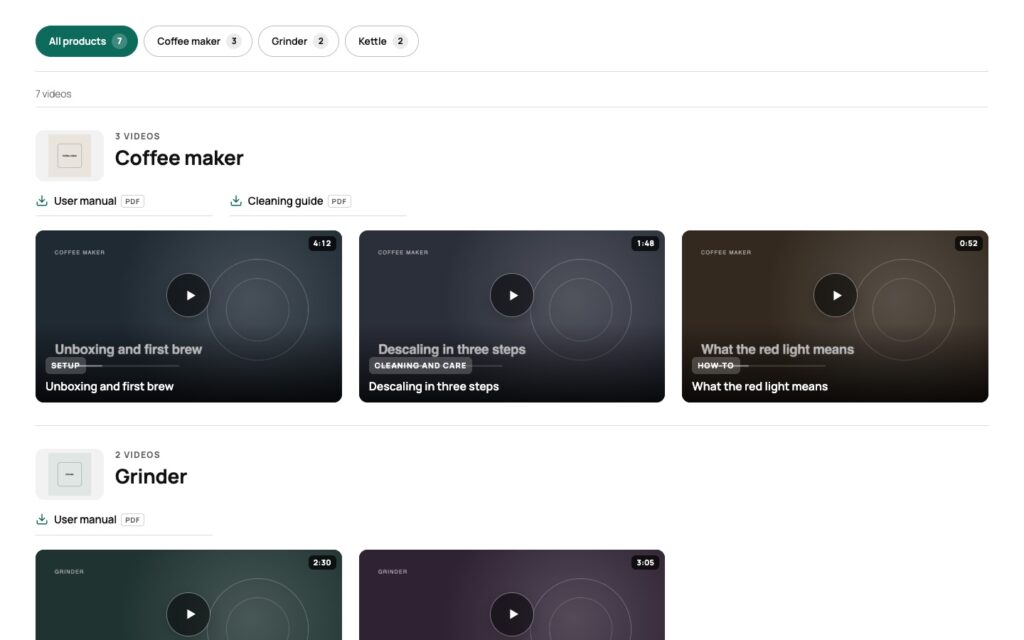
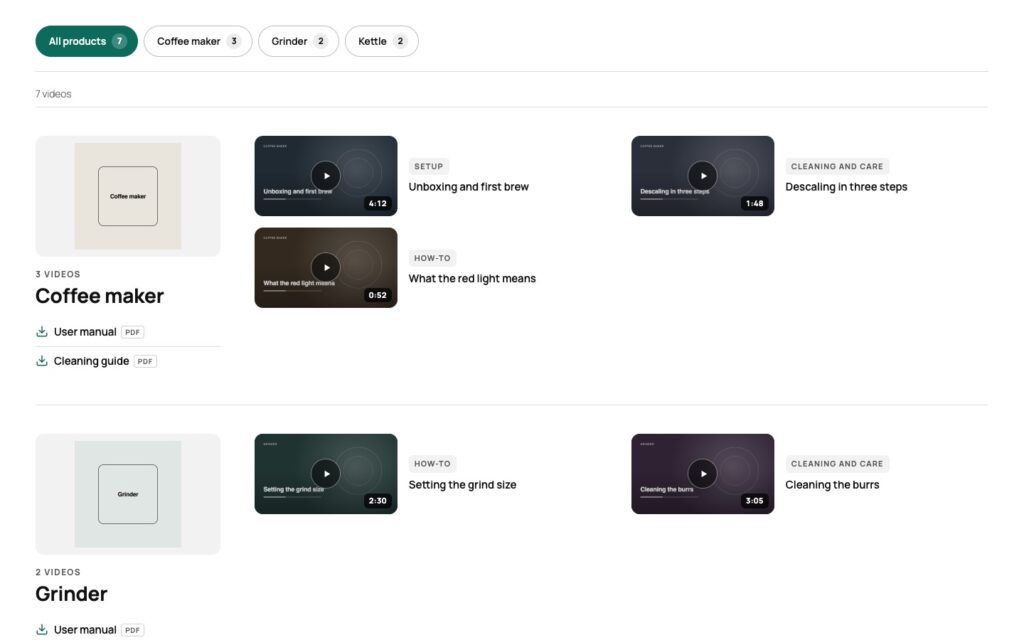
| Card style | Image, title below (standard), Title on the image (overlay) or List with small images |
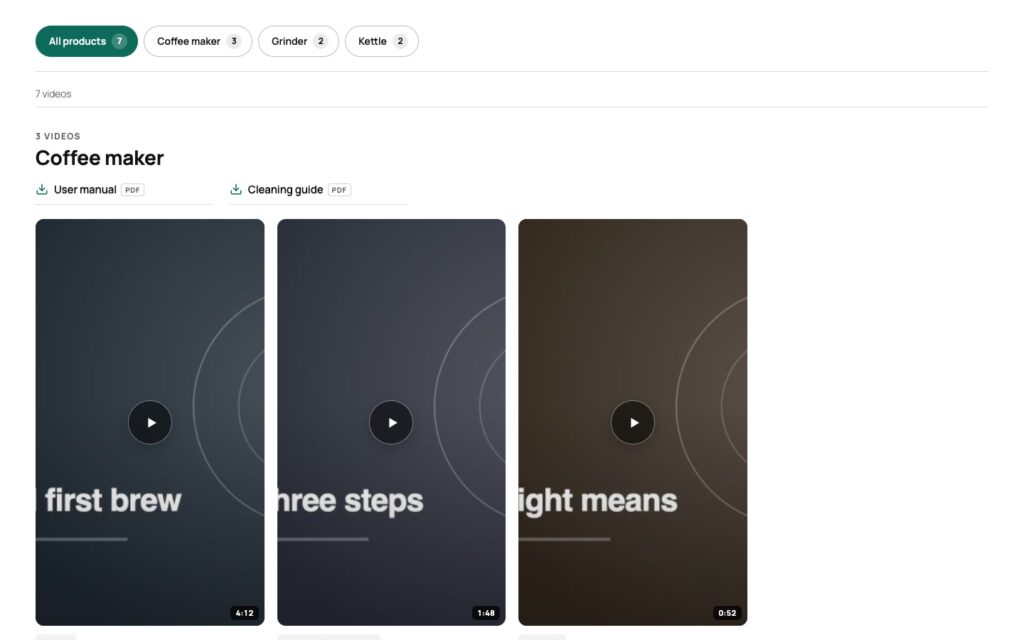
| Image format | 16:9 widescreen, 4:3, 1:1 square or 9:16 upright for Shorts and Reels |
| Product area | Next to the videos on wide pages, Above the videos, or Name and manuals only, no image (minimal) |
| Text size | Small, Normal or Large for titles and labels |
Playback
| Control | What it does |
|---|---|
| Play videos | In a full-screen view with next/previous (the default) or Right in the card. In-card playback keeps the visitor on the page; the full-screen view shows description, manuals and the strip of other videos |
Show
| Control | What it does |
|---|---|
| Video type on the cards | the small type line on each card |
| Number of videos per product | the count on each product button |
| Manuals next to the videos | the download buttons of each product in the library. Off also hides products that only have manuals |
Play button, hover effect, card frame, filter style, counts, the length badge, the “New” badge and the colors of the full-screen view are global and live under Video Guides > Settings; they apply to every block on the site.
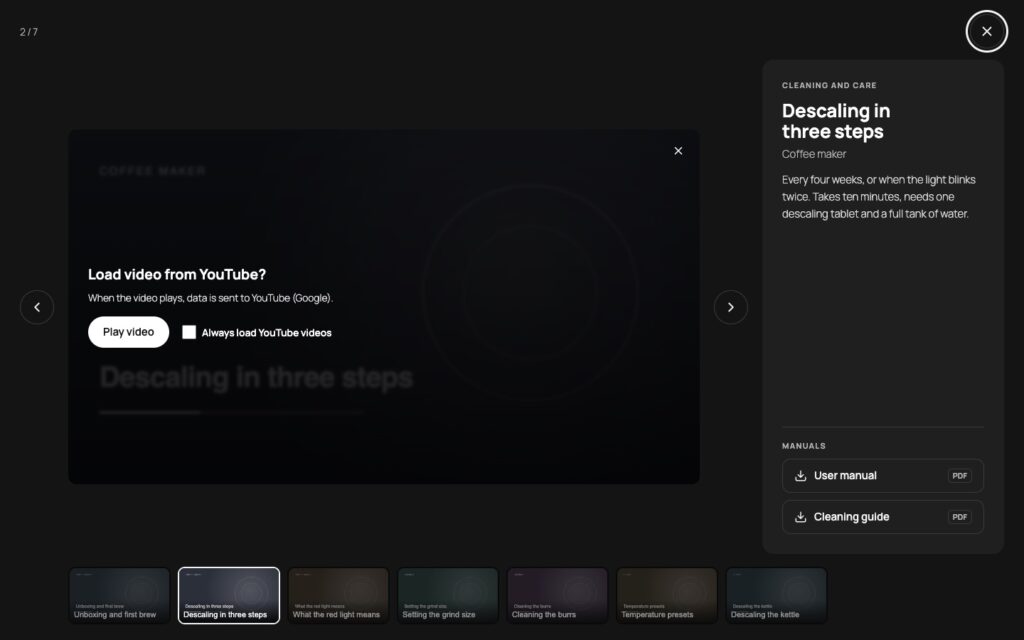
The full-screen view
A click on a card opens the video large on a stage: dark, light or in your theme colors (a setting). Around it: the title, the short description, the product and its manuals as download buttons, arrows to the previous and next video, and a strip of every video in the current filter. The keyboard works (arrow keys, Escape), so does a swipe on a phone. Every video in the view has its own address #video-123; opening that address shows the video right away.
On phones
The filter row becomes swipeable chips or a bottom sheet, stays on top while scrolling and hides while scrolling down, so the videos get the screen. The product area moves above the videos, columns fall back to one or two, and 9:16 cards are made for Shorts and Reels.
9. The library shortcode
For the classic editor and page builders, [d9vg_library] renders the same library with the same options. Every attribute you leave out uses the block default.
| Attribute | Values | Default |
|---|---|---|
products | comma-separated product slugs | empty = all |
types | 1 shows the video type filter | 0 |
mobile | chips or sheet | chips |
sticky | 0 lets the filter bar scroll away on phones | 1 |
play | lightbox (full-screen view) or inline (in the card) | lightbox |
columns | auto, 2, 3, 4 | auto |
card | standard, overlay, list | standard |
aspect | 16:9, 4:3, 1:1, 9:16 | 16:9 |
product | side, top, minimal | side |
size | s, m, l | m |
show_type | 0 hides the video type on the cards | 1 |
show_count | 0 hides the counts in the filter | 1 |
show_manuals | 0 hides the manuals in the library | 1 |
[d9vg_library products="coffee-maker,grinder" types="1" mobile="sheet" columns="3" card="overlay" aspect="16:9"]10. The Video block and shortcode
The Video (Two-Click) block places one video anywhere: in a product description, a blog post or a support answer. Pick the video from the dropdown; the block shows the preview image with a play button and loads YouTube or Vimeo only after the click, exactly like the library.
| Control | What it does |
|---|---|
| Video | the video from Video Guides |
| Style | Large, with title in the image (hero) or Card like in the library |
| Title in the image | a label over the image; empty = the title of the video |
| Small line in the image | a caption line; empty = the video type |
| Privacy note below the video | the line “The video loads from YouTube only after you click” |
| Play in a full-screen view | opens the full-screen view instead of playing in place |
The shortcode [d9vg_video] takes either a video from the plugin or a link directly:
| Attribute | Values | Default |
|---|---|---|
id | the ID of a video from Video Guides | none |
youtube | a YouTube link or ID, for a video that is not in the library | none |
vimeo | a Vimeo link or ID | none |
variant | hero or card | hero |
label | the title in the image | video title |
caption | the small line in the image | video type |
privacy | 0 hides the privacy note | 1 |
play | inline or lightbox | inline |
[d9vg_video id="123" variant="card"]
[d9vg_video youtube="https://youtu.be/dQw4w9WgXcQ" label="Descaling in three steps" caption="Care"]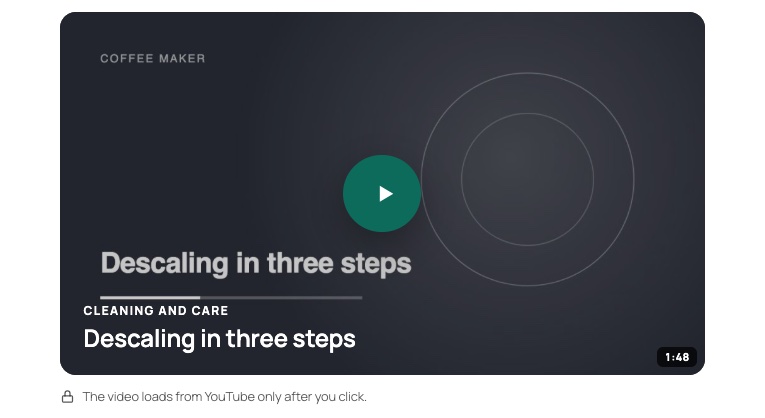
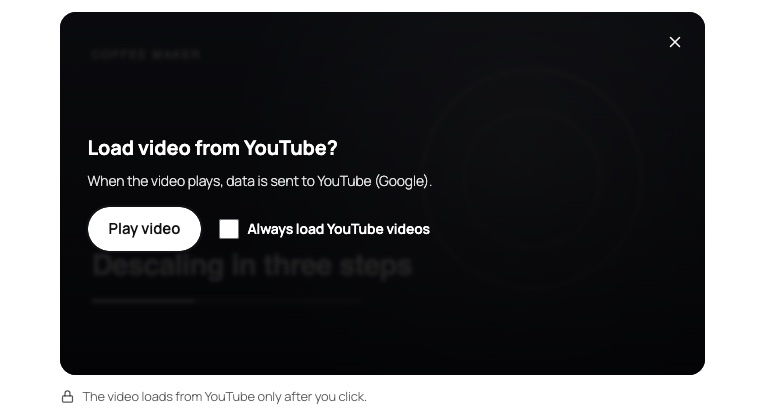
Note: a video given by link only has no product, no manuals and no place in the library. It still plays two-click and still carries the privacy note.
11. The Manuals block and shortcode
The Manuals block lists every manual as download cards, grouped by product, in the language of the page. It is the download center for a support page that has no videos yet, or the place where the data sheets live.
| Control | What it does |
|---|---|
| Heading (optional) | a heading above the cards |
| Introduction (optional) | a short text under the heading |
| Products | which products should show their manuals; none selected = all |
[d9vg_manuals heading="Manuals" intro="All manuals as PDF."]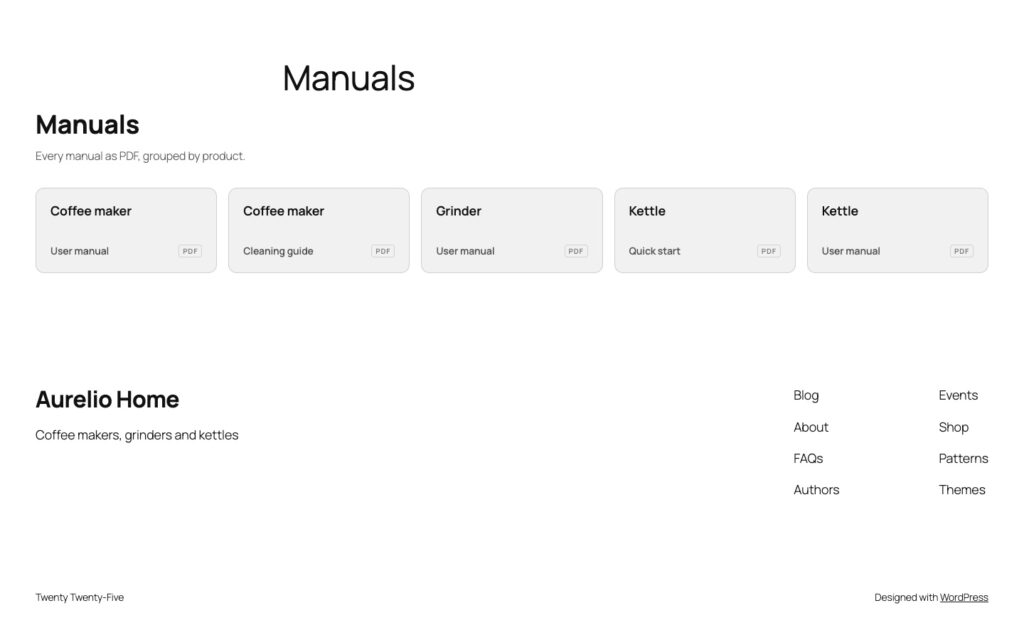
When there is no manual in the language of the page, the block is hidden on the page; editors see a note instead of an empty box.
12. Deep links
Two kinds of addresses let you send people straight to the right place: from a QR code on the packaging, from a support ticket or from your own navigation.
| Address | What it does |
|---|---|
/videos/#coffee-maker | opens the library page with the product filter already set to that product slug |
/videos/#video-123 | opens the library page with that video already open in the full-screen view |
The library updates the address while the visitor filters and browses, so a copied link always lands where the visitor was. The addresses are plain fragments, nothing is sent to the server for them.
13. Settings
Video Guides > Settings holds the global look and behavior. A live preview next to the options updates as you change them; save to apply them on the site. Fonts and text color come from your theme there.

Look
| Option | What it does |
|---|---|
| Accent color | used for active filters, play buttons and download links. Empty = the text color of your theme. Button text switches between black and white automatically for contrast |
| Corners | Rounded (the default), Square, or Same radius everywhere with a pixel value |
| Play button | Round, see-through (default), Round, in the accent color, Only the play icon, or a button with the text “Watch video” |
| Effect on hover | Zoom into the image (default), Brighten the image, Lift the card with a shadow, or none |
| Card frame | none (default), a thin line, or a card with background |
| Product filter | Rounded buttons (default), Tabs with underline, or Square buttons |
| Details on the cards | show the number of videos in the product filter; show the length of the video on the preview image |
| New badge | videos published within this many days get a “New” badge; 0 = off |
| Full-screen view | Dark (default), Light, or Colors of your theme |
Columns, card style, image format and product layout are not here: they are per block, so two libraries on two pages can look different while sharing the same play button and colors.
Languages
| Option | What it does |
|---|---|
| Fallback language for videos | if a video has no version in the language of the page, this version is shown. Manuals are only shown in the language of the page |
Privacy
| Option | What it does |
|---|---|
| Consent for YouTube and Vimeo | Use my cookie plugin if there is one (recommended): Borlabs Cookie, Complianz or Melon Consent decide, the built-in panel is the fallback. Always ask with the built-in consent panel: the plugin ignores the cookie plugin and shows its own panel inside the player |
Data
| Option | What it does |
|---|---|
| Delete all videos, products and settings when the plugin is deleted | off by default. Images and PDF files in the media library are never deleted either way |
14. Privacy, consent and cookie plugins
The plugin is built so that a page full of videos makes no request to YouTube or Vimeo until a visitor asks for one. That is what makes it usable under the GDPR without a consent entry for every page view.
| What happens | |
|---|---|
| Before the click | only the preview image from your own media library is on the page. No script, no iframe, no cookie from the video service |
| The click | if your cookie plugin already has consent for YouTube or Vimeo, the video starts right away. Otherwise a short consent panel appears inside the player: play once, or “always load” for this service |
| “Always load” | stored in your cookie plugin when you use Borlabs Cookie or Melon Consent, otherwise in the visitor’s browser (localStorage), not in a cookie |
| YouTube | plays from www.youtube-nocookie.com (privacy-enhanced mode) |
| Vimeo | plays from player.vimeo.com with “do not track” |
| Your own files | no third party at all, no panel, no consent |
| Privacy policy link | the consent panel links to the privacy page set under Settings > Privacy |
Cookie plugins
| Plugin | What is checked |
|---|---|
| Borlabs Cookie 3 | services youtube and vimeo |
| Complianz | category marketing |
| Melon Consent | services youtube and vimeo. The desk9 cookie banner and content blocker, free on wordpress.org; the two plugins are built to work together |
The services and the category can be changed with the d9vg_consent_config filter, and a further cookie plugin can be added in JavaScript (see For developers). With Always ask with the built-in consent panel the integration is off and the panel is always used.
What the plugin sends where
| When | What |
|---|---|
| Saving a video in the admin | YouTube: the video ID to i.ytimg.com for the preview image. Vimeo: the video link to vimeo.com/api/oembed.json for preview image and length. Admin only, once per video |
| A visitor clicks play | the video is loaded from YouTube or Vimeo; the service then receives the visitor’s IP address and browser data. Nothing before that |
| License and updates | when you activate the license and when WordPress checks for updates (at most every 12 hours): product name, license key, site URL and installed version to desk9design.com. No visitor data |
Terms and privacy policies of the services: YouTube terms, Google privacy policy, Vimeo terms, Vimeo privacy policy, desk9 privacy policy.
15. WPML and Polylang
The plugin ships in English with a German translation and works with WPML and Polylang out of the box. A wpml-config.xml is included, so WPML knows which fields to translate.
| How it works | |
|---|---|
| Videos | translate a video like any post. The library shows the version in the language of the page; a video without a translation falls back to the fallback language from the settings, then to the default language of the site |
| Products and video types | translated terms with their own names, short names and images |
| Manuals | stored per product, so a translated product carries its own manuals; a German product gets the German PDF. The Manuals block, the library and the full-screen view show only the manuals of the current language |
| Filter keys | deep links use the slug of the default language, so #coffee-maker works on every language of the page |
16. Structured data
Every video on a page carries schema.org VideoObject markup: name, description, thumbnail, upload date, duration and the embed or content URL. Search engines can show the videos as video results without the page loading a single player. The short description of the video is the description in the markup, so it is worth writing one.
Turn the markup off with the d9vg_schema_enabled filter if another plugin already writes video markup for the same page.
17. License and updates
The license key is in your order email and under Subscriptions in your account. It activates as many sites as your plan allows: 1, 5 or unlimited.
1
Open Video Guides > License, paste the key into License key and click Activate license. The page answers “License activated. Updates are now delivered to this site.”
2
The status box shows Active on this site, the number of sites in use (for example “Sites: 1 of 5”) and Valid until. Check status and updates asks the license server again right away.
3
Updates now appear on Dashboard > Updates and on the Plugins screen like any other plugin. WordPress checks at most every 12 hours.
4
Moving the plugin to another site? Click Deactivate on this site first, so the slot is free for the new site. You can also free a slot under Subscriptions in your account.
| Status | Meaning |
|---|---|
| Active on this site | the key is valid and this site uses a slot; updates arrive |
| Not active on this site | no key, or the key was deactivated here; the plugin works, updates do not arrive |
| Expired or disabled | the subscription has ended or was refunded; renew under Subscriptions and click Check status |
| Unknown license key | a typo, or a key for another product |
| The license server could not be reached | a temporary network problem on the way to desk9design.com; try again later |
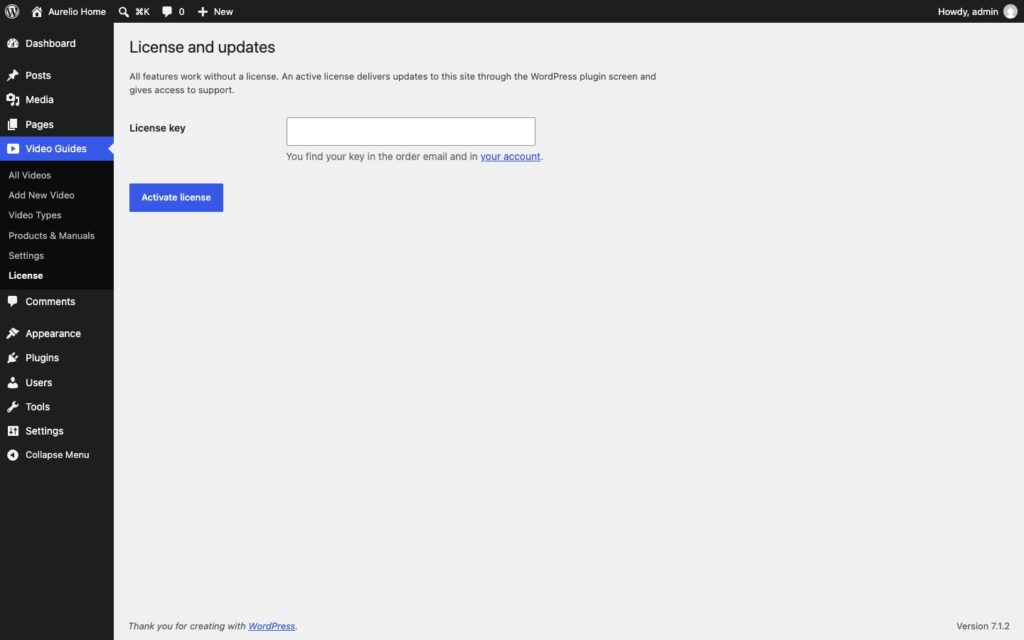
Note: all features work without an active license. What stops after expiry is the update check and support; the videos, the library and the settings keep working as they are.
18. Staging and moving sites
Staging and local sites do not use a slot. A site whose address is localhost, a .local, .test or .ddev.site domain or a subdomain starting with staging., dev., test. or local. activates without counting against your plan, so you can test an update before it goes live.
When you move a site to a new domain, the license notices the new address at the next check and the old address frees its slot after a while. To be safe, deactivate on the old site before the move and activate on the new one afterwards. Videos, products, manuals and settings travel with the database; the preview images and files with the media library.
Cloning a site with a database copy keeps the license key in the copy. On the clone, deactivate the key if the clone should not use a slot.
19. For developers
The plugin adds nothing to your theme and needs no build step. A few filters and one JavaScript hook cover the common extensions.
| Filter / action | What it does |
|---|---|
d9vg_consent_config | the consent services and categories per provider (youtube, vimeo) for the cookie plugins. borlabs and melon hold one entry per provider |
d9vg_videos | change the list of videos the library renders. Items carry the source fields source, yt, vimeo, vhash and src |
d9vg_library_product_aside | an action that adds content below the manuals of a product in the library |
d9vg_schema_enabled | return false to turn off the VideoObject markup |
d9vg_manual_filetype | the file type badge for download links without a file extension |
Another cookie plugin can be plugged in with a JavaScript adapter on window.d9vgConsentAdapters: an object with active() (is this cookie plugin running), given( provider ) (is consent given for youtube or vimeo) and optionally save( provider ) (store “always load” in the cookie plugin).
window.d9vgConsentAdapters = window.d9vgConsentAdapters || [];
window.d9vgConsentAdapters.push( {
	active: function () { return !! window.myCookieTool; },
	given: function ( provider ) { return window.myCookieTool.allowed( provider ); },
	save: function ( provider ) { window.myCookieTool.allow( provider ); }
} );
Data model: videos are the post type d9vg_video, products and video types are taxonomies, manuals are term meta on the product, preview images are regular attachments. Everything is in your database and travels with a normal WordPress export.
20. Troubleshooting and FAQ
The library is empty on the page.
A video shows a play button on an empty card.
The video does not start after the click.
YouTube shows no length on the card.
The length or the preview image is wrong after I changed the link.
The filter bar covers content on phones.
Can I have two libraries with different products?
Do unlisted Vimeo videos work?
Does the plugin set cookies?
Can I use it with the classic editor or a page builder?
What is the difference to the CodeCanyon edition?
Where do I get help?
21. Uninstall
Deactivating the plugin leaves everything in place. Deleting it under Plugins removes the plugin files and, by default, keeps your videos, products, manuals and settings in the database, so a reinstall finds them again.
To remove the data too, switch on Delete all videos, products and settings when the plugin is deleted under Video Guides > Settings > Data before you delete the plugin. Images and PDF files in the media library are never deleted; they are yours.
Deactivate the license on this site first (Video Guides > License), so the slot is free for another site.